This function performs batch operations on multiple process instances of a definition.
On the Process Instances page, go to the Utils - Batch Operations menu option.

The Batch Operations are displayed on a new page. Select the process definition from the drop-down list. Select the desired status from the available options in the drop-down list.

The process instances are shown in the table below.

Select an option from the list or use Actions - Select - All to choose the entire list.

You can now navigate to the Action menu and perform the following batch operations on the selection list.

Reset process instances.
The process instance in Sleeping, Completed, Abort, or Error status can be reset.
Select the process instance from the list on the Batch Operations page and click the Actions—Reset menu option. Then click OK to confirm. The process instance(s) will be reset in the background and removed from the list once finished.

Remove process instances.
Select the process instance from the list on the Batch Operations page and choose the Actions—Remove menu option. Then click OK to confirm. The selected process instance(s) will be permanently removed.

Abort process instances.
Select the process instance from the list on the Batch Operations page and click the Actions—Abort menu option. Then click OK to confirm. The selected process instance(s) are aborted.

Execute process instances.
Select the process instance from the list on the Batch Operations page and click the Actions—Execute menu option. Then click OK to confirm. The selected process instance(s) will be executed as a batch.

Execute process instances in Test Mode.
Select the process instance from the list on the Batch Operations page and click on the Actions - Execute in Test Mode menu option. Click OK to confirm. Choose the user from the drop-down list. Click the Execute button. The selected process instance(s) run as the specified user. All emails are sent to this test user during execution.

Execute process instances with parameters.
Select the process instance from the list on the Batch Operations page and click the Actions—Execute—Params menu option. Then click OK to confirm.

The chosen process instance(s) run in the background with previously known parameters.

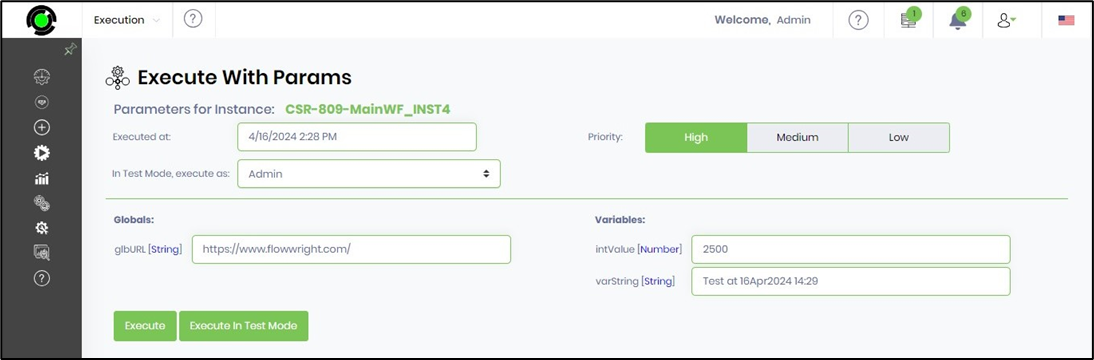
Navigate to the Process Instance page to execute the process instance with parameters. Select the process instance from the list and click the Execute—With Params menu option.

The Execute With Params page offers more configuration options. Select a user from the drop-down list to run this instance as that user. Choose the priority from High, Medium, and Low. Enter the values for globals and variables as shown below. Click on the Execute or Execute in Test Mode button. The process instance runs with the specified parameter values.
Archive process instances.
Select the process instance from the list on the Batch Operations page and click the Actions—Archive menu option. Then click OK to confirm.

The selected process instance(s) are archived as a batch. To see the list, go to the Administration—Archive menu page.
