clsArchiveProcessInstance Step
Description:
The Archive Process Instance step enables a FlowWright workflow to archive an existing process instance by using its unique Process Instance ID.
As business processes complete, process instances often no longer require active execution but must remain available for auditing, reporting, compliance, or historical analysis. Rather than deleting completed process instances, organizations can archive them to preserve execution history while reducing the number of active instances displayed to administrators and users.
The workflow supplies the Process Instance ID of the process instance to archive. When the specified process instance executes successfully, it is archived, and workflow execution continues along the success path.
Typical uses include:
- Archiving completed workflow instances
- Retaining audit history
- Preserving regulatory compliance records
- Managing long-running business processes
- Cleaning up completed process lists
- Retaining execution history for reporting
- Supporting records retention policies
- Reducing active process repository size
This step helps organizations implement process lifecycle management while preserving valuable workflow execution history.
Inputs
- Process Instance ID - Specifies the unique identifier of the process instance to archive. The value can be entered directly or supplied through a workflow variable, global variable, or the output of another workflow step.
Returns
- True – The specified process instance was successfully archived. Workflow execution continues through the success path.
- False – The process instance could not be archived because of an invalid Process Instance ID, insufficient permissions, a missing process instance, or another execution error. Workflow execution follows the alternate path.
Usage:
The Archive Process Instance step is typically placed near the end of a workflow after all business processing, approvals, notifications, integrations, and reporting activities have completed successfully.
During execution:
- Receive the Process Instance ID.
- Locate the specified process instance.
- Validate that the process instance is eligible for archiving.
- Archive the process instance.
- Continue workflow execution through either the True or False return path.
A typical workflow might look like this:

Typical workflow scenarios include:
- Archiving completed purchase approval workflows
- Preserving completed employee onboarding processes
- Archiving completed service request workflows
- Retaining completed compliance approval processes
- Managing completed customer onboarding workflows
- Maintaining historical workflow execution records
- Supporting audit and regulatory compliance requirements
Example:
Let’s build and execute the “clsArchiveProcessInstanceDef” example.
- Create a new definition named “clsArchiveProcessInstanceDef” and open it in designer mode.
- Drag an "executeSQL, clsArchiveProcessInstance" step to the canvas.
- Connect the dots between the “Start” and other steps, as shown above.
- Select the line between the steps to configure the “Connection Properties”. The default property values are “None, Error, Evaluate, and Timeout”. Depending on the step’s purpose, additional values are available for configuration.
- Define a variable or a global variable to store the result.
-
Click the "executeSQL" step to configure its “Required” properties. Provide a name for the step. Select the connection string from the drop-down list. Enter the SQL SELECT statement. Choose the result format as XML or JSON. Click the Save button. Note: Click the "AI Predict" button to have the Copilot add new process steps that match your process description.

- Click the "executeSQL" step to configure its “Optional” properties. Provide a variable or a global reference to store the process instance ID, then click the Save button.

- Click the "clsArchiveProcessInstance" step to configure its “Required” properties. Enter a name for the step. Enter the Process Instance ID value to archive. Click the Save button.

- The “Logging” configuration is necessary for documentation and also measures workflow progress and percent complete. This is achieved by configuring the step state and percent fields individually, as shown below. Configure the “Logging” using the following properties.

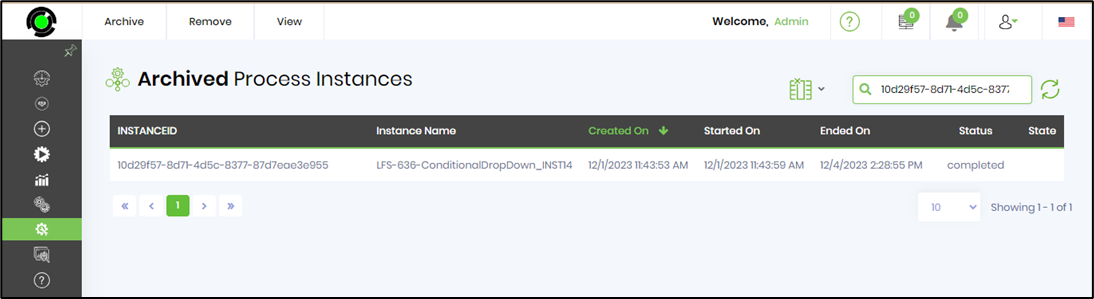
- Save the process definition, create a new instance, and then execute it. As configured, the process step should archive the other process instance. Navigate to Administration > Archive > Process Instance > Search by the GUID. The list of archived cases is shown in the table below.
Tips:
- Archive process instances only after all workflow activities have completed successfully.
- Store the Process Instance ID in a workflow variable for reuse throughout the workflow.
- Complete reporting, auditing, and notification activities before archiving the process instance.
- Implement the False return path to log archive failures and notify administrators.
- Establish retention policies that define when completed process instances should be archived.
- Combine this step with Persist Process Instance, Archive Form Instance, Send Email, Update Variable Values, or reporting steps to build comprehensive workflow lifecycle management solutions.
Notes:
- The Process Instance ID property is required.
- Only the specified process instance is archived.
- The step archives an existing process instance; it does not archive the process definition.
- Ensure the executing workflow has sufficient permissions to archive the specified process instance.
- Both the True and False return paths should be implemented to provide complete workflow handling.
- Execution details and archive operations are recorded in the FlowWright workflow execution log.
Archive Process Instance vs. Move Process Definition To Folder:
Although both steps manage FlowWright process-related objects, they operate on different resources and support different administrative objectives.
| Archive Process Instance | Move Process Definition To Folder |
|---|---|
| Archives an individual process instance. | Moves a process definition to another folder. |
| Operates on a workflow execution that has been started or completed. | Operates on the reusable workflow definition created by designers. |
| Requires a Process Instance ID. | Requires a process definition and a destination folder. |
| Supports lifecycle management, auditing, records retention, and historical reporting. | Supports organization, administration, and maintenance of workflow definitions. |
| Typically executed after business processing has completed. | Typically executed during workflow administration, deployment, or repository organization. |
| Does not change the location of the process definition. | Does not archive or modify any existing process instances. |
As a general guideline:
- Use Archive Process Instance when workflows need to preserve completed workflow executions while removing them from the active process list.
- Use Move Process Definition To Folder when administrators need to reorganize or maintain the repository structure of reusable workflow definitions.
Definition Sample:
You may download the sample workflow definition from the link provided and import it into your FlowWright environment.
Note: Verify and complete any missing configuration after importing the sample, including:
- Process Instance ID
- Success and failure workflow branches
- Appropriate permissions to archive process instances
- Validation that the specified process instance exists
After verifying the configuration, save and publish the workflow before execution.