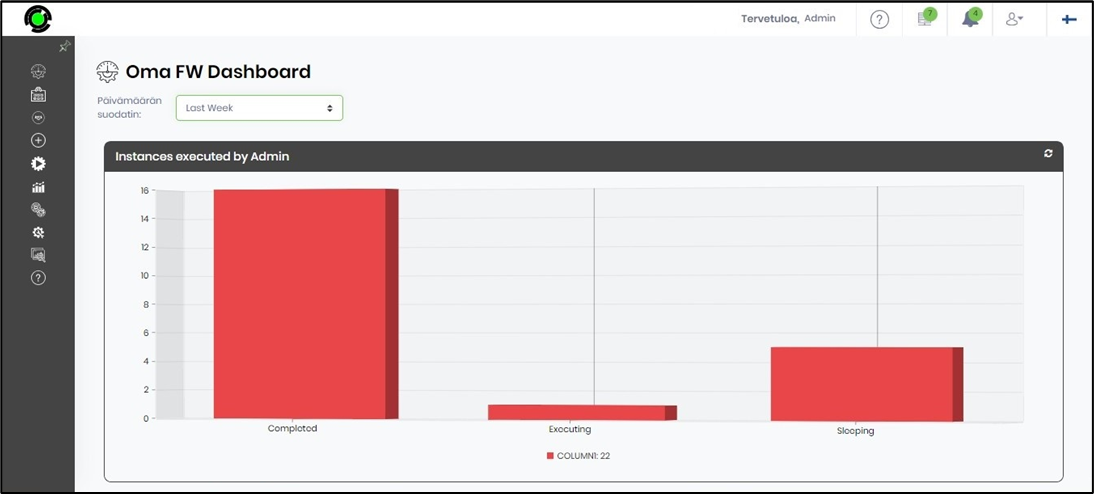
This function enables you to configure dashboards for greater effectiveness.
You need to go to the Manage > Dashboard page.

Select a dashboard from the list, then click the Utils menu option to access the “Preview, Mark as Default, Show/Hide, Date Filter On/Off, Set System Dashboard for, Set Dashboard for App Roles” features.

Mark the dashboard as the user's default dashboard.
Select the Mark as Default menu option. This option lets you set the selected dashboard as the default for the current user and all FlowWright users. When the user logs in, the default dashboard is displayed.

A confirmation message appears in the top-right corner.

When the user logs in, the default dashboard is displayed.

To restore the default dashboard configuration, select the dashboard, then click the Utils > Show/Hide menu option.

The default dashboard setup is reset, and a confirmation message appears in the top-right corner.

The FlowWright system dashboard is set as the default dashboard when the user logs in to the application.

Show/Hide the dashboard.
This toggle lets you set or remove the selected dashboard as a menu item in the left pane for quick access.
Click the Utils > Show/Hide menu option to add the dashboard as a menu item.

A status confirmation message appears in the top-right corner.

Date Filter On/Off.
This toggle lets you configure (or undo) the dashboard's date-based sorting using the date filter.
Click the Utils > Date Filter On/Off option to enable the date filter on the dashboard.

The date filter is enabled on the dashboard, and a confirmation message appears in the top-right corner.

To view the dashboard with a date filter, select the dashboard, then click the Preview option under the Utils menu.

The dashboard displays a date filter on a separate page, as shown below.

Click the date filter drop-down list to select a different timeline.

The dashboard is refreshed to reflect the selected timeline, as shown below.

Set System Dashboard for Regular User.
This function lets you set a dashboard as the “default” for all users.
Select the dashboard from the list, then choose the Utils > Set System Dashboard for - Regular User menu option. The selected dashboard will appear when the standard user logs in.

Set System Dashboard for Admin User.
This function allows you to set a dashboard as the “default” for ADMIN users.
Select the dashboard from the list, then click the "Utils - Set System Dashboard for Admin User" option. The selected dashboard will appear when the ADMIN user logs in.

Set Dashboard for App Role.
This function lets you grant or revoke permissions for the application role on a specific dashboard. Application roles determine how dashboards are displayed to a user. When a user logs in to the FlowWright UI, their roles determine which dashboards are accessible, and a list of available dashboards appears in the menu. Note: Dashboard App roles and the Dashboard Security App User roles remain synchronized when modified, whether added, changed, or removed.
Select the dashboard from the list, then click the Utils > Set Dashboard for App Role menu option.

A pop-up appears for configuration. You must select the app roles from the drop-down list. You may choose one or more app roles, as shown in the example below. Click the Set button to confirm.
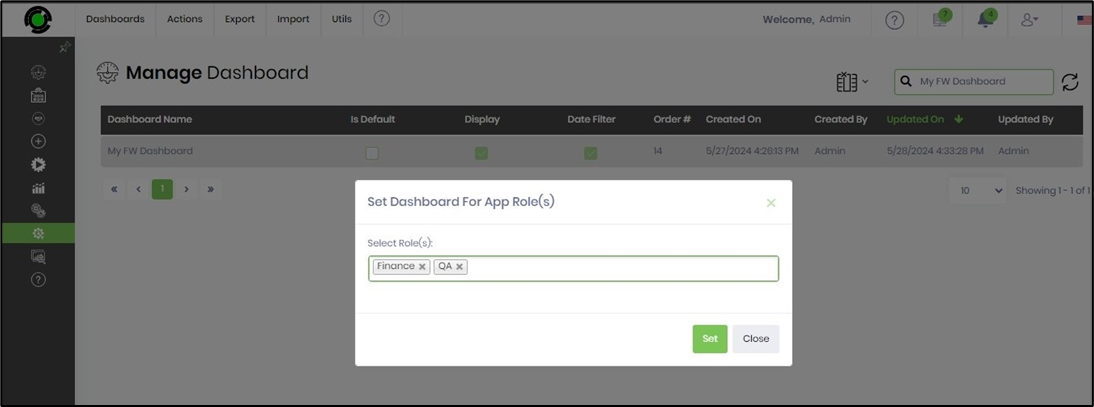
Users associated with the app roles listed above have the privilege of accessing the dashboard. A confirmation message is displayed in the top-right corner.

Globalize the User Dashboard.
This function allows you to globalize a User Dashboard.
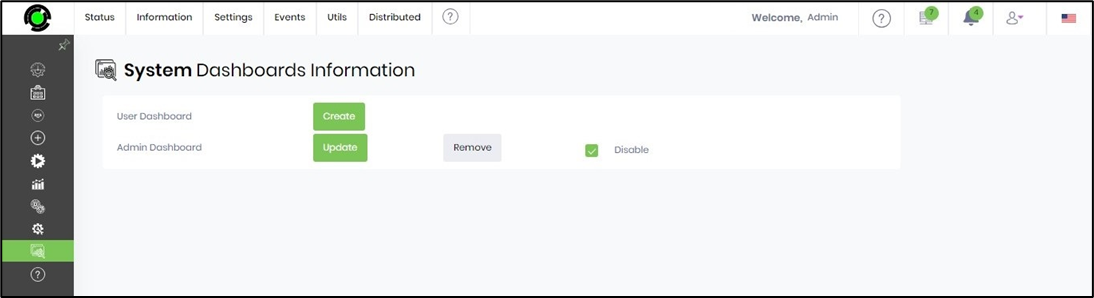
Navigate to the Status > Status > Utils > System Dashboard page to grant or revoke privileges for creating and updating user and admin dashboards.
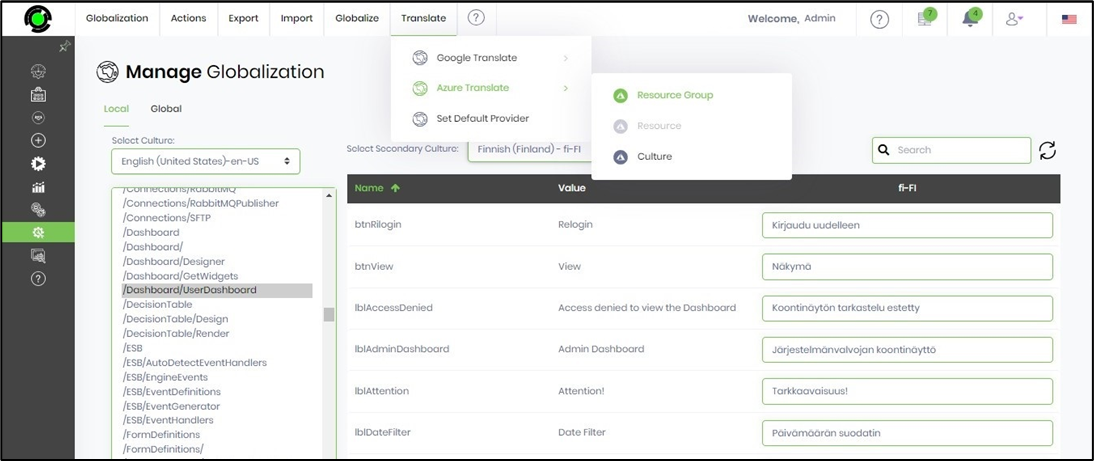
Navigate to Administration > Globalization > Manage Globalization to globalize resources for user dashboards in the “\Dashboard\UserDashboard” system artifact. Select the secondary culture from the drop-down list. Click Azure Translate - Resource Group to globalize all items to the FINNISH culture. You can also choose Google Translate as an alternative. Click Save Changes to confirm.
The dashboard can now be previewed in FINNISH by changing the culture flag in the top-right corner.