This function lets you design dashboard charts for data visualization.
Navigate to Manage Config. > Dashboards menu option.

Manage Dashboard opens on a new page, as shown below. Click the Help icon for more information about the context.

Design a dashboard using System widgets.
Select Actions > Create. Enter the dashboard name and display order number. Select the Open Designer checkbox. Click Create to start. The sample reference image is shown below.

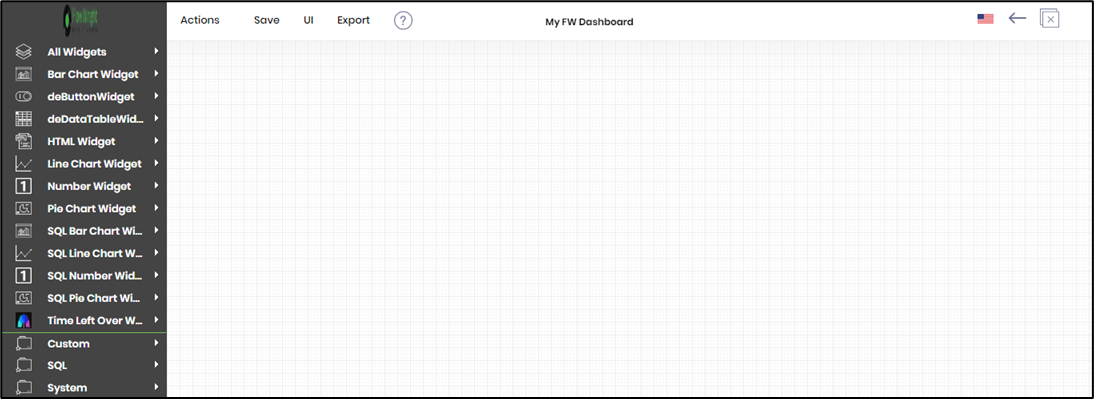
The dashboard designer canvas is shown below. The left pane contains dashboard widgets, categorized as Bar Chart, Line Chart, Numbers, Pie Chart, SQL widgets (Bar, Line, Pie, Numbers), Custom, and System. The top menu bar provides functions to create, edit, remove, save, preview, and export dashboards as XML files. The culture flag in the top-right corner lets you translate text into a different language.
Note: System widgets are preconfigured to fetch specific types of data, including definitions, instances, errors, and other relevant information. You can customize some widgets with a data connection, an SQL query, and background colors.
Expand the System category, then drag the Number widgets onto the designer canvas, as shown below. Finally, save the report configuration.

Click UI > Preview to view the dashboard.

The custom dashboard is displayed on a new page, as shown below.

Actions - Menu.

To globalize the dashboard content, select a language from the drop-down list, then click the “Translate” button. The translated text appears in the empty text boxes, as shown below. A notification appears in the top-right corner. Click the Save button to confirm the changes. Note: The application uses the Azure ML configuration for translation. To set up the configuration, navigate to Status > Settings > Configuration > Azure ML category.

In the Dashboard preview page, select the culture flag from the drop-down list to view the globalization changes.

Configure the UI theme for Dashboard Widgets using the “Set UI Theme” feature. A configuration pop-up window appears. Select “Theme colors” or “Custom colors” by clicking the appropriate button. Use the drop-down list to choose the heading and body background and text colors. Click the “Set UI” button to confirm the changes. A notification message appears in the top-right corner. The UI Theme changes take effect immediately.

Enhance the dashboard content by using the “System Variables” feature. A pop-up window displays the available system variables, as shown below.

In this example, we use the system variable “variable.userFullName” in the Dashboard title text, as shown below. Click the Save button.

Preview the dashboard to view the system variable value, as shown below.

Actions - Save.

Actions - UI.

Actions - Export.

How to design a dashboard using custom SQL widgets with a date filter?
The following SQL custom dashboard widgets are available in the System category.
- Custom Bar Chart
- Custom Line Chart
- Custom Number Chart
- Custom Pie Chart
- SQL Calendar Widget
- SQL Card Widget
- SQL Data Table Grouped Column Widget
- SQL Data Table Grouping Widget
- SQL Donut Chart Widget
- SQL Funnel Chart Widget
- SQL Gauge Widget
- SQL Kanban Widget
- SQL Scatter Plot Chart Widget
- SQL Semi Donut Chart Widget
- SQL Stacked Area Chart Widget
- SQL Stacked Column Chart Widget

Expand the System category and drag the custom bar chart widget onto the designer canvas. Then, as shown below, drag the handles to resize the widget to a larger area. Finally, click the Edit icon in the top-right corner.

The Configure Widget UI properties are shown in the pop-up window below. Enter the title name. Choose the database connection from the drop-down list. Provide the correct SQL SELECT syntax for the custom bar chart algorithm. Use the $dateFilter (wildcard syntax) in the WHERE condition and an appropriate date column reference. Click the “Test Query” button to validate the SQL SELECT syntax. Click the plus sign (+) to insert empty Board (swimlane) headers. Configure the header, text, and color. Insert multiple headers using the plus sign. Provide the Card title and description. Click the plus sign (+) to insert empty field rows. Provide the field information. Select colors from the drop-down list for the chart heading and body text. Click the Save button. Note: On the Manage Dashboard page, go to the Utils - Date Filter On/Off menu to toggle the date filter for this dashboard definition.

On the dashboard designer canvas, choose the UI > Preview > Date Filter On/Off menu to toggle the date filter. When the report is generated, the Date Filter is enabled on the dashboard.

On the dashboard designer canvas, choose the UI > Preview menu to view the dashboard.

The custom bar chart dashboard is generated and rendered on a new page.

How do you provide security permissions for a dashboard?
Click the link to learn about dashboard security permissions.
How to pass parameters to a dashboard?
Click the link to learn how to render dynamic dashboards.