Description:
This widget displays the Form Data Table.
Inputs
- ID/Name - Name of widget generated by FlowWright (read-only field)
- Select - Select form data table from the drop-down list
- Columns - Add columns to show
- Show Process Status - Select the checkbox to show the process status column (tick mark)
- Show Process Viewer - Select the checkbox to show process viewer column (tick mark)
Design:
Example:
Let’s build and execute the “DataTableDataDef” example.
- Create a new Form Definition called “DataTableDataDef.”
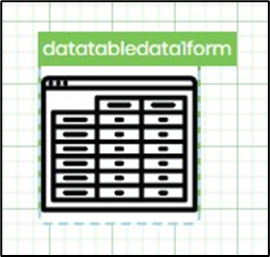
- Drag a “BootstrapGrid, DataTableData, and Submit” control onto the canvas (an icon resembling the TableData widget) and arrange them as shown below.

- Double-click the “DataTableData” widget to configure the “Settings” properties. Provide a name for the control. Select the existing form data table from the drop-down list. Click the plus sign (+) to add an empty row. Select the column name from the drop-down list. Choose the necessary columns from the form data table. Provide the column display name. Repeat the column addition for additional columns. Select the check box to display the process status column and process viewer columns at runtime. Click the Save button.

- Save the Form definition. Choose Actions > Create Form Instance from the menu. Generate a new Form instance, then check the box to edit it.

- The Form is shown to the user as illustrated below.
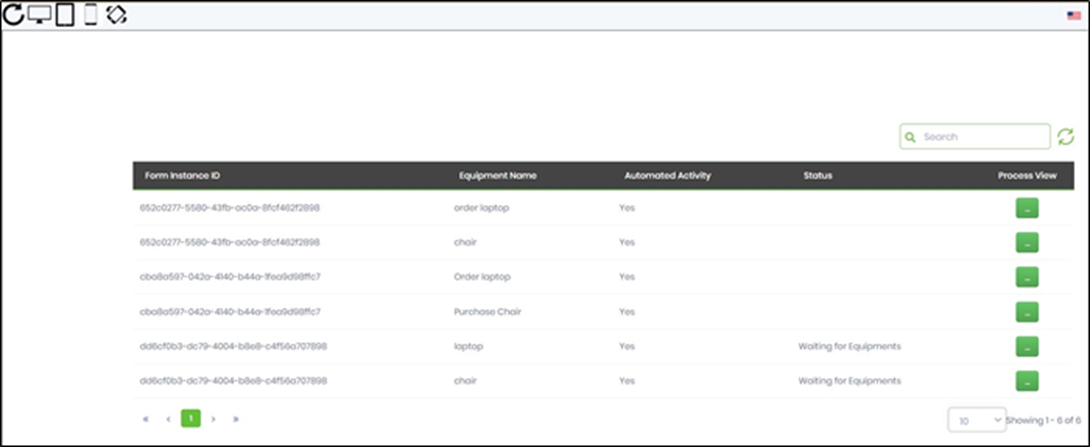
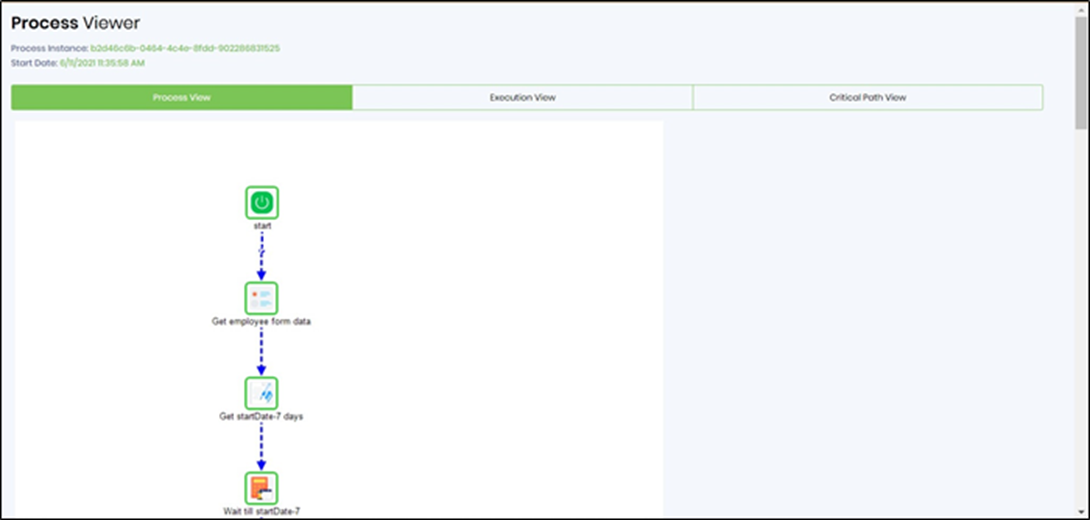
- Click the "Process View" button to open the process view in a new tab, as shown below.
Definition Sample:
You may download and extract the sample definition(s) from the link provided and later import them (drag-and-drop) into your FlowWright Process Definition (XML file) or Form Definition (HTML file) page.
Note: Please verify and complete the process steps for any missing configurations, such as file path references and database connections, after the import. Then, save the definition to confirm the changes.
Click here to download the sample file.