Description:
The Remove Form File Attachments step enables a FlowWright workflow to remove file attachments from one or more file upload controls within an existing form instance.
Business processes often require documents to be replaced, deleted, or removed because they are outdated, incorrect, duplicated, or no longer required. Rather than recreating the form instance, this step allows workflows to remove only the selected file attachments while leaving all other form data intact.
The step identifies the target form instance, optionally identifies the associated form definition, and uses a mapping between file controls and the attachments to be removed. Once the specified files are removed, workflow execution continues through either the success or failure path.
Typical uses include:
- Removing obsolete supporting documents
- Deleting incorrect file uploads
- Replacing attachments during document revisions
- Cleaning temporary workflow files
- Removing duplicate attachments
- Enforcing document retention policies
- Preparing forms for archival
- Managing attachment lifecycle within approval workflows
This step enables workflows to maintain accurate and up-to-date document attachments without modifying other information stored within the form instance. Note: This step attaches permitted file types to a Form Instance. These files are accessed from the file system on the application server or the DMS file storage folder, whose configuration is defined in the “Start” process step.
Inputs
- Variable/Global Holds the Form Instance ID - Specifies the workflow variable or global variable containing the target form instance identifier. This property is required.
- Select Form Definition - Optionally specifies the form definition associated with the form instance.
- Mapping of File Control ID to Remove Files - Specifies one or more mappings between file upload controls and the files that should be removed from those controls.
Returns
- True – The specified file attachments were successfully removed from the form instance. Workflow execution continues through the success path.
- False - One or more attachments could not be removed because of an invalid form instance, incorrect mappings, unavailable files, insufficient permissions, or another execution error. Workflow execution follows the alternate path.
Usage:
The Remove Form File Attachments step is typically used when workflows need to delete or replace documents already attached to a form.
During execution:
- Locate the target form instance.
- Optionally validate the selected form definition.
- Read the configured file control mappings.
- Remove the specified attachments from the corresponding file upload controls.
- Update the form instance.
- Continue workflow execution through either the True or False return path.
In this sample workflow, the user submits a Form with a file attachment. Next, the “addFormFileAttachment” step adds another file at runtime. The “getFileAttachments” step retrieves all file attachments for this Form Instance ID. The Form is then routed back to the user to view all file attachments before submission.

Typical workflow scenarios include:
- Replacing outdated contracts
- Removing expired supporting documents
- Updating employee onboarding forms
- Removing duplicate uploads
- Cleaning temporary workflow attachments
- Updating engineering drawings
- Replacing quality assurance documents
- Maintaining document compliance throughout workflow execution
Example:
Let’s build and execute the “removeFormFileAttachmentsDef” example.
- Create a new definition called “removeFormFileAttachmentsDef” and open the definition in designer mode.
- Drag a “removeFormFileAttachments” step to the canvas.
- Connect the dots between the “Start” and “removeFormFileAttachments” steps, as shown above.
- Select the line between the steps to configure the “Connection Properties”. The default property values are “None, True, False, Error, and Evaluate”. Depending on the step’s purpose, additional values are available for configuration.
- Click the “getFileAttachments” step to configure its “Required” properties. Provide a name for the step. Provide a variable or a global reference to store the Form Instance ID. Then click the Save button. Note: Click the "AI Predict" button for the Copilot to add new process steps that match your process description.

- Select the Form Definition from the drop-down list. Click the button to map the Form files for removal. Click the Save button.

- A pop-up window appears for configuration. Click the Add Row button to insert an empty row. Enter the file ID and the file name to be removed. Select the “RemoveAllFiles” checkbox to remove all attached files. Click the Save button. You may insert multiple mappings by using the Add Row button.

- The “Logging” configuration is necessary for documentation and also measures workflow progress and percent complete. This is achieved by configuring the step state and percent fields individually, as shown in the images below. Configure the “Logging” using the following properties.

- Please submit a Form with the file attachments as shown in the example below. Take note of the Form Instance ID in the URL address bar (e.g., 3d56f7b0-9d7d-4c6f-822e-efec0010a85a).

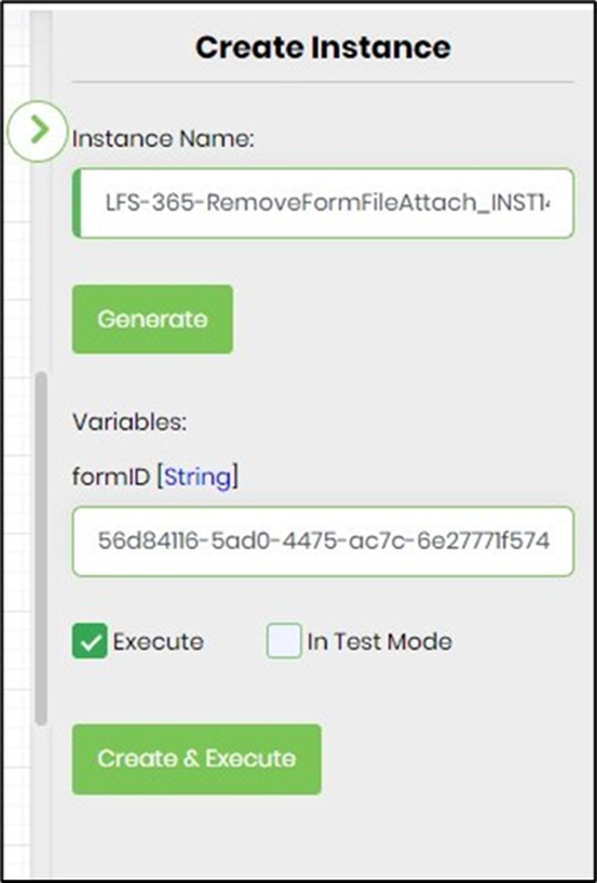
- Save the process definition, create a new instance, and then execute it. Provide the Form Instance ID (previously created with some file attachments) value to the variable as shown in the image below. Click the Create and Execute button.
- Render the process instance to verify its completion status.

- Render the Form Instance to view the file attachments. The files have been removed from the Form Instance, as shown in the example below.

Security - Permissions:
Click the link to learn about the security permissions available for Form File Attachments.
Tips:
- Verify that the form instance exists before removing attachments.
- Configure file control mappings carefully to ensure only the intended attachments are removed.
- Use this step before uploading replacement documents.
- Route the False execution path to logging and notification activities for easier troubleshooting.
- Retain backup copies of important documents when business rules require audit history.
- Combine this step with Add Attachments, Archive Form Instance, Send Email, Generate PDF, or document management steps to automate the document lifecycle.
Notes:
- The step removes only the specified file attachments and does not modify other form data.
- The Form Instance ID is required.
- The Form Definition is optional.
- File removal is based on the configured file control mappings.
- Both the True and False return paths should be implemented for complete workflow handling.
- Ensure that the executing workflow has permission to modify the target form instance.
- Attachment removal activities are recorded in the FlowWright workflow execution log.
Remove Form File Attachments vs. Add Attachments:
Although both workflow steps manage files associated with FlowWright form instances, they perform opposite operations.
| Remove Form File Attachments | Add Attachments |
|---|---|
| Removes existing file attachments from form file controls. | Adds new file attachments to form file controls. |
| Uses the Remove Form File Field Mappings to identify files to be deleted. | Uses the Add Form File Field Mappings to identify files to upload. |
| Requires a form instance identifier. | Requires a form instance identifier. |
| Optionally allows selection of a form definition. | Optionally allows selection of a form definition. |
| Typically used during document replacement or cleanup workflows. | Typically used when attaching generated or uploaded documents to forms. |
As a general guideline:
- Use Remove Form File Attachments when workflows need to delete outdated, duplicate, or unnecessary documents from existing form instances.
- Use Add Attachments when workflows need to upload new documents, generated reports, images, or other supporting files into form file controls.
Definition Sample:
You may download the sample workflow definition from the link provided and import it into your FlowWright environment.
Note: Verify and complete any missing configuration after importing the sample, including:
- Form instance identifier
- Optional form definition
- File control mappings
- Success and failure workflow branches
- Appropriate permissions to modify the target form instance
After verifying the configuration, save and publish the workflow before execution.
Click here to download the sample file.