wordDocReplacer Step
Description:
The WordDocReplacer step provides a simple template-based document replacement mechanism, requiring a report template and allowing the workflow to specify the output file name and a Variable/Global in which the resulting output file path is stored.
Inputs
- Choose Report Template – selects the Word document/report template to use.
- Name of the output file - optionally specifies the name of the generated output file.
- Variable/Global to hold output file path - specifies the Variable/Global that holds the path of the generated document.
Returns
- True – Step executed successfully
- False – Step failed to execute
Usage:
The WordDocReplacer step is useful when a workflow has a Word template containing FlowWright Variables or Globals and needs to create a document with those values replaced.
During process design:
- Add the WordDocReplacer step to the Process Definition.
- Select the required Report Template.
- Configure the Variables and Globals that the template is designed to use.
- Optionally specify the Name of the output file.
- Specify a FlowWright Variable/Global for Variable/Global to hold output file path.
- Connect the step to the preceding and subsequent workflow steps.
- Save the Process Definition.
- Create a Process Instance.
- Execute the workflow.
- Verify the generated document.
- Use the output file path Variable/Global in subsequent workflow steps.

Typical workflow suggestions:
- Generate personalized customer letters - Use WordDocReplacer when a standardized Word letter needs to be populated with customer-specific information.
- Generate business correspondence - Use the step to create letters, notices, acknowledgments, or other correspondence containing workflow-specific values.
- Generate approval or rejection letters: a workflow can populate a Word template with approval or rejection information.
- Generate documents from workflow Variables - Use WordDocReplacer when the required document content is already available as FlowWright Variables or Globals.
- Create standardized forms: use a centrally maintained Word template for documents that follow a standard corporate format.
- Generate documents before archiving - Use WordDocReplacer to produce a complete Word document before storing it in a document repository or another downstream system.
- Generate documents for downstream processing - The output Variable/Global can be used by later workflow steps.
Example:
Let’s build and execute the “wordDocReplacerDef” example.
- Create a new process definition called “wordDocReplacerDef” and open the definition in designer mode.
- Drag an “updateVariablesWithSQL, wordDocReplacer” step to the canvas.
- Define a variable or a global to store the SQL column values.
- Connect the dots between the “Start” step and other steps, as shown above.
- Select the line between the steps to configure the “Connection Properties”. The default property values are “None, True, False, Error, and Evaluate”. Depending on the step’s purpose, additional configuration options are available.
- Click the "updateVariablesWithSQL" step to configure its "Required" properties. Provide a name for the step. Select the Connection String from the drop-down list. Enter the SQL SELECT statement. Click the button to assign SQL column values to process variables or globals. Click the Save button. Note: Click the "AI Predict" button to have Copilot add new process steps that match your process description.

- Click the button to assign SQL column values to the process variables or globals. A pop-up window appears for configuration. Click the Add Row button to insert a blank row. As shown below, enter the SQL column names and map them to the process variables or globals. Click the Save button.

- Click the "updateVariablesWithSQL" step to configure its "Optional" properties. Provide the DB name if you need to connect to a different source. Click the button to assign SQL Parameters. Click the Add Row button to insert a blank row. As shown below, enter the SQL Param Name and map it to the SQL Param Value. Click the Save button. Use the “Add Row” button to create multiple SQL Parameters.

- Open Microsoft Word and create a .docx template file as shown below. The template includes process variables or globals that are replaced with actual values when the document is created during the process instance. Provide a name and save the template as a .docx file in your local folder.

- Click the "WordDocReplacer" step to configure its "Required" properties. Provide a name for the step. Click the file icon to upload the DOCX report template. Specify a variable or global to store the output file path. Click the Save button. Note: Click the "AI Predict" button to have the Copilot add new process steps that match your process description.

- Click the "WordDocReplacer" step to configure its "Optional" properties. Enter a name for the output docx file. Click the Save button.

- The “Logging” configuration is necessary for documentation and also measures workflow progress and percent complete. This is achieved by configuring the step state and percent fields individually, as shown in the images below. Configure the “Logging” using the following properties.

- Save the process definition, create a new instance, and execute it. The process instance completes without any human intervention.
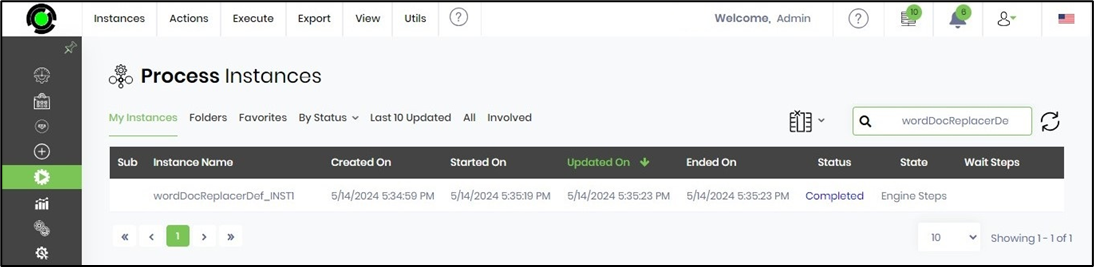
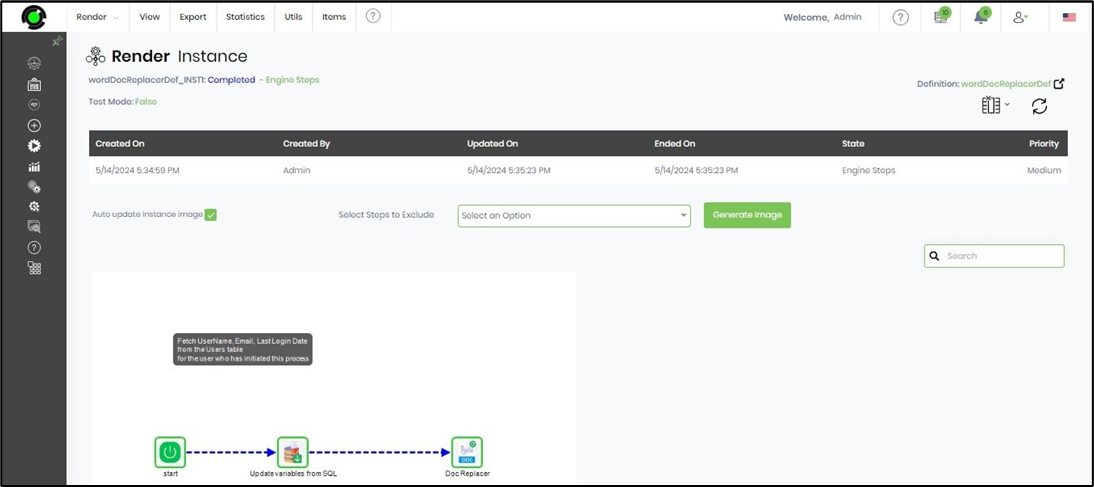
- Render the process instance. Click the “WordDocReplacer” process step to view its properties.
- The step should generate a DOCX file using the variables or global values provided at runtime. The variable stores the path to the PDF file name, as shown below.

- Use the AppURI to the output file path and download the DOC file. The Word document is replaced with variable values during the process instance.

Tips:
- Select the correct Report Template before executing the step.
- Make sure the template contains the Variables/Globals expected by the workflow.
- Populate required Variables/Globals before the WordDocReplacer step executes.
- Use meaningful names for the output Variable/Global, such as
InvoiceDocumentPath,AgreementPath, orCustomerLetterPath. - Use the name of the output file when a specific output filename is required.
- Test the template with representative values before deploying the workflow.
- Verify that all Variables/Globals referenced by the template have appropriate values.
- Use the output file path Variable/Global in subsequent workflow steps instead of hard-coding the generated document location.
- Keep reusable document templates standardized to make workflows easier to maintain.
- If different document types require substantially different layouts, use separate templates rather than attempting to make a single template handle unrelated formats.
- Test documents containing multiple Variables, long text values, dates, numbers, and other representative data.
- Verify the generated document after template changes.
- The XML definition does not expose configuration options for PDF generation, document security, data-source configuration, table relationships, or DOCX/PDF physical and virtual paths. These should not be documented as configurable WordDocReplacer properties based on this step definition.
- The XML identifies True and False returns but does not document the conditions associated with those paths.
Notes:
- Category: Engine
-
Internal name:
worddocreplacer - Label: Replace word document with variables & globals
- Display name: Doc Replacer
-
Namespace:
FlowWright.Workflow.ClsWordDocuemntReplacer -
DLL:
FlowWright.Workflow.dll - Step definition type: Process
- Input connections: 2
- Output connections: 2
- Configurable properties: 3
- Returns: False / True
Feature Comparison: WordDocGenerator vs. WordDocReplacer.
Both WordDocGenerator and WordDocReplacer are FlowWright Engine process steps designed to work with Word document templates. However, they serve different levels of document generation:
- WordDocGenerator is a full document-generation step. It selects a report template, configures data sources and table relationships, supports document security, and generates DOCX and/or PDF output.
- WordDocReplacer is a simpler template-replacement step. It selects a report template, replaces variables/globals in the Word document, and produces an output file.
| Feature | WordDocGenerator | WordDocReplacer |
|---|---|---|
| Purpose | Generate documents as Word or PDF using Word templates | Replace variables/globals in a Word document |
| Category | Engine | Engine |
| Internal name | worddocgenerator |
worddocreplacer |
| Label | Generate documents as Word or PDF using word templates | Replace word document with variables & globals |
| Display name | Generate Doc | Doc Replacer |
| Namespace | FlowWright.Workflow.WordDocGenerator |
FlowWright.Workflow.ClsWordDocuemntReplacer |
| DLL | FlowWright.Workflow.dll |
FlowWright.Workflow.dll |
| Step type | Process | Process |
| Input connections | 2 | 2 |
| Output connections | 2 | 2 |
| Configurable properties | 11 | 3 |
| Report template selection | ✓ | ✓ |
| Template property | chooseReportTemplate |
templateName |
| Template property label | Choose Report Template | Choose Report Template |
| Template required | Yes | Yes |
| Data source configuration | ✓ | — |
| Table relationship configuration | ✓ | — |
| Document security configuration | ✓ | — |
| DOCX physical path | ✓ | — |
| PDF physical path | ✓ | — |
| DOCX virtual path | ✓ | — |
| PDF virtual path | ✓ | — |
| Generate only PDF option | ✓ | — |
| Output file name | ✓ | ✓ |
| Output Variable/Global | Physical/virtual paths configured separately | Variable/Global holds output file path |
| Folder name | ✓ | — |
| Output file path property | Multiple physical/virtual path properties | varName |
| Returns | False / True | False / True |
| Simple variable replacement | Not explicitly exposed as a separate property | Core purpose |
| Data source support | Explicitly configured | Not exposed |
| Table relationship support | Explicitly configured | Not exposed |
| Document security support | Explicitly configured | Not exposed |
| PDF generation control | Explicitly exposed | Not exposed |
Definition Sample:
You may provide a sample Process Definition containing the WordDocReplacer step and import it into the FlowWright Process Definition (XML file) page.
After importing the sample, configure:
- Choose Report Template
- Name of the output file, if required
- Variable/Global to hold output file path
- Variables/Globals required by the Word template
- Connections to the preceding and subsequent workflow steps
Click here to download the sample file.