This function allows you to categorize the Form widgets.
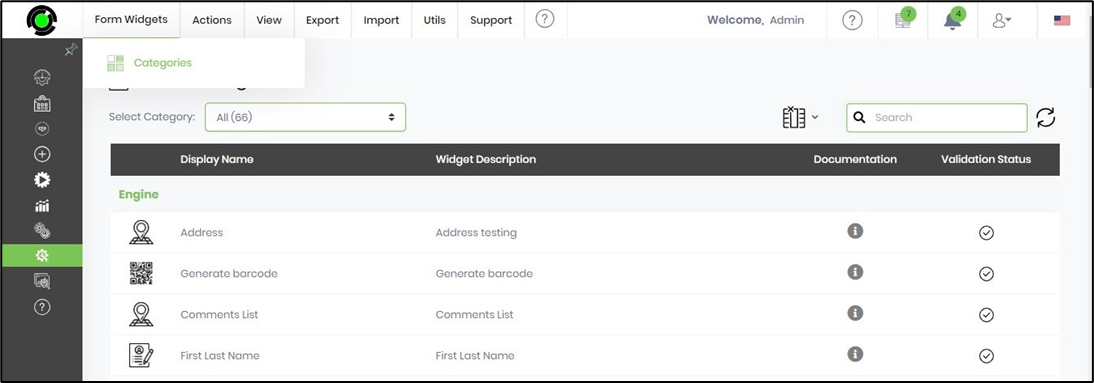
Navigate to Administration > Form Widgets > Categories page.
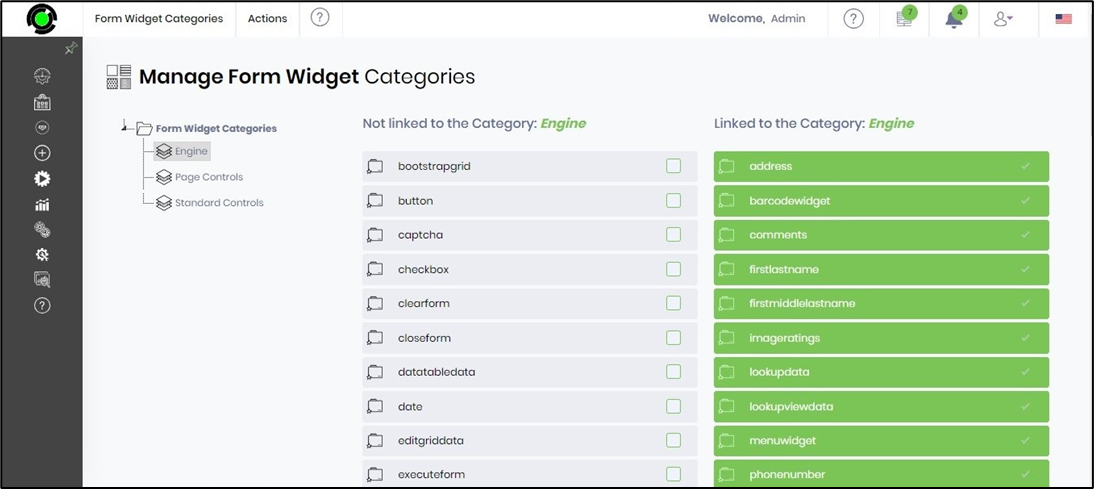
The Manage Form Widget Categories are displayed on a new page as shown below. You will also notice a list of widgets not linked to any category and a list linked to the selected category.
Add Form Widget Category.
Select the Actions > Create menu option on the Manage Form Widgets page.

A pop-up window appears for configuration. You need to enter a new name and then click the Create button.

The new widget category appears in the list, and a confirmation message shows in the top-right corner.

Add controls to the new Form Widget Category.
On the Manage Form Widget Categories page, select the widget category on the tree to see a list of controls that are not linked to this category, as shown below.

Use the checkbox to move and connect the controls to the new widget category, as illustrated below.

Rename or Remove Form Widget Category.
On the Manage Form Widget Categories page, select the widget category in the tree and right-click to open the context menu, as shown below. Then, choose the option to rename or delete the Form widget category.

On the Manage Form Widget Categories page, select the widget category in the tree and click the Actions - Rename or Remove menu option, as shown below.

Note: The form controls are unlinked, and the widget category will be permanently removed.
Update Globalizations for Form Widget Category.
On the Manage Form Widget Categories page, select the widget category in the tree and click the Actions - Update Globalizations menu option, as shown below.

A confirmation pop-up window appears. Click OK to proceed.

The global resources for the widget category have been updated, and a confirmation message will be displayed in the top-right corner.
