Description:
Captcha — Provides a CAPTCHA control on a FlowWright form to help distinguish human users from automated submissions.
Inputs
- ID/Name - Name of the widget generated by FlowWright
Design:
The Captcha widget is a FlowWright form widget in the Engine category. It is implemented by FlowWright.Forms.clsCaptcha in FlowWright.Forms.dll and is displayed in the form designer as Captcha. Captcha
Because Captcha is defined as a form widget, it is intended to be used as part of a FlowWright form rather than as a conventional workflow process step.
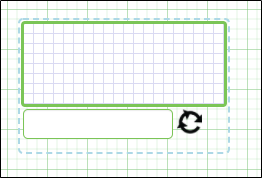
Use the Captcha widget when a FlowWright form needs a CAPTCHA control as part of its user interaction.
You can include a CAPTCHA on forms where limiting automated submissions is important, such as public-facing registration, request, or submission forms.
Typical Workflow Suggestions:
Customer Registration
Use the Captcha widget on a customer registration form to help protect submissions from automated requests.
Example workflow:
Start → Customer Registration Form → Captcha Verification → Validate Customer Information → Create Customer → End
Include the Captcha as part of the registration form before processing the submitted information.
Public Service Request
Use the Captcha widget on a publicly accessible service request form where users submit requests without requiring an authenticated session.
Example workflow:
Start → Service Request Form → Captcha Verification → Validate Request → Create Service Request → End
The Captcha adds an extra interaction step in the request form.
Contact or Inquiry Form
Use the Captcha widget on a contact or inquiry form to help reduce automated submissions.
Example workflow:
Start → Contact Form → Captcha Verification → Validate Inquiry → Assign Request → End
Include the Captcha alongside the contact information and inquiry details.
Account Request Form
Use the Captcha widget when users submit a request for an account or access to a FlowWright-managed service.
Example workflow:
Start → Account Request Form → Captcha Verification → Validate Request → Administrator Review → End
Include the Captcha as part of the initial request form.
Feedback Submission
Use the Captcha widget on a feedback form that is accessible to users who may not be authenticated.
Example workflow:
Start → Feedback Form → Captcha Verification → Validate Feedback → Store Feedback → End
You can place the Captcha on the form before the feedback is submitted for processing.
Example:
Let’s build and execute the “CaptchaDef” example.
- Create a Form definition called “CaptchaDef.” Navigate to Forms > Definitions on the left pane to create it. On the Form Definitions page, select Actions > Create. Check with your FlowWright administrator if you don't have access to generate Form Definitions.

- Drag a “BootstrapGrid, Label, Captcha, and Submit” control onto the canvas and position them as shown below.

- Double-click the “Captcha” widget to view its “Settings” properties. The application provides the control name, so you don't need to configure any input. Select the checkbox to hide the captcha text during runtime. Click the Save button.

- Save the Form definition. Select Actions > Create Form Instance from the menu. Generate a new Form instance, then select the checkbox to edit it. Check with your FlowWright administrator if you don't have access to generate form instances.

- The Form is displayed as shown in the example below. Enter your input and click the Submit button to complete the process.

Tips:
- Use the CAPTCHA widget on forms where protection against automated submissions is appropriate.
- Place the CAPTCHA in a logical location near the form submission controls.
- Keep the CAPTCHA experience clear to legitimate users.
- Test the complete form submission process to ensure the CAPTCHA works correctly with the surrounding workflow.
- Do not infer provider-specific CAPTCHA settings from this XML definition because no such properties are exposed.
Definition Sample:
You may download and extract the sample definition(s) from the link provided and later import them (drag-and-drop) into your FlowWright Process Definition (XML file) or Form Definition (HTML file) page.
Note: After the import, verify and complete any missing configurations, such as file path references and database connections. Then, save the definition to confirm the changes.