Description:
The Sub-Workflow step separates functionality into a child workflow instance and executes it separately from the parent workflow instance.
The step supports:
- Selecting a Process Definition to execute as a child workflow
- Passing workflow variables from the parent to the child instance
- Passing workflow variables from the child back to the parent
- Passing global variables from the parent to the child instance
- Passing global variables from the child back to the parent
- Mapping parent variables and globals to child variables and globals
- Mapping child variables and globals back to the parent
- Synchronized parent and child execution
- Selecting the execution priority of the child instance
This step can be used for:
- Reusable workflow components
- Approval subprocesses
- Document processing
- Order or transaction processing
- Validation subprocesses
- Notification workflows
- Data processing workflows
- Modular workflow design
- Separating complex functionality into manageable child workflows
The Sub-Workflow step is an Engine process step. It is implemented by FlowWright.Workflow.dll and uses the FlowWright.Workflow.SubWorkflow namespace.
Inputs
- definitionID – Definition to use - Select the Process Definition that should be executed as the child workflow. This is a required property.
- passVariablesToChild – Pass variables to child instance - Determines whether variables from the parent instance are passed to the child instance.
- passVariablesBackToParent – Pass variables back to parent - Determines whether variables from the child instance are passed back to the parent instance.
- passGlobalsToChild - Pass globals to child instance - Determines whether globals from the parent instance are passed to the child instance.
- passGlobalsBackToParent - Pass globals back to parent - Determines whether globals from the child instance are passed back to the parent instance.
- pcvarmap - Parent to child variable mapping - Defines mappings between parent variables and child variables.
- pcglobalmap - Parent to child global mapping - Defines mappings between parent globals and child globals.
- isSynced – Yes = parent waits until child instance is completed to execute; No = parent instance does not wait for the child instance to complete; parent instance continues execution
- executionPriority - Select execution priority - Selects the execution priority for the child instance.
- cpvarmap - Child to parent variable mapping - Defines mappings between child variables and parent variables.
- cpglobalmap - Child to parent global mapping - Defines mappings between child globals and parent globals.
Returns
- True – Step executed successfully.
- False – Step execution failed.
Usage:
The Sub-Workflow step is typically placed when a process needs to delegate a defined portion of its functionality to another Process Definition.
The parent workflow can invoke the selected child Process Definition and optionally exchange variables and globals with the child instance.
For example:

A parent workflow can use a Sub-Workflow to keep a complex process modular. Instead of placing every activity in a single large Process Definition, a reusable group of activities can be maintained as a separate child Process Definition.
The child workflow can receive required values from the parent and, when configured, return values to the parent.
The XML definition identifies the step specifically as a mechanism that “Separates functionality into child-instances and executes them separately from the parent instance.”
The selected child Process Definition can also be configured to execute synchronously. The XML specifies Is synchronized with a default value of yes.
Parent-to-child data
The parent workflow can provide information to the child workflow through variable and global mappings.
For example:
Parent Variable
      │
      └────► Child Variable

Parent Global
      │
      └────► Child Global
Use the Parent to child variable mapping and Parent to child global mapping properties when specific values need to be mapped between the two workflow instances.
Child-to-parent data
The child workflow can return information to the parent workflow through the corresponding child-to-parent mappings.
Child Variable
      │
      └────► Parent Variable

Child Global
      │
      └────► Parent Global
This allows the child workflow to perform a defined piece of processing and return the resulting values to the parent workflow.
The XML explicitly provides both variable and global mappings in both directions.
Typical Workflow Suggestions:
Reusable business process
Use a Sub-Workflow when a group of workflow activities represents a reusable business capability that can be maintained independently.
Main Process
     │
     ▼
Sub-Workflow
     │
     ▼
Reusable Business Process
     │
     ▼
Main Process continues
This can help keep larger Process Definitions easier to maintain.
Approval subprocess
Use a Sub-Workflow to separate approval processing from the main business process.
Start
  │
  ▼
Prepare Request
  │
  ▼
Sub-Workflow ──► Approval Process
  │
  ▼
Process Approval Result
The parent workflow can pass request information to the child and receive the resulting approval information through the configured mappings.
Document processing
Use a Sub-Workflow to isolate document validation or processing.
Receive Document
       │
       ▼
Sub-Workflow
       │
       ├──► Validate Document
       ├──► Extract Information
       └──► Process Document
       │
       ▼
Continue Main Workflow
This allows document-processing functionality to be maintained as a separate Process Definition.
Order processing
Use a Sub-Workflow to handle a defined order-processing stage.
Create Order
     │
     ▼
Sub-Workflow
     │
     ├──► Validate Order
     ├──► Process Order
     └──► Return Result
     │
     ▼
Update Main Process
Parent-to-child and child-to-parent mappings can be used to exchange the information required by the order-processing subprocess.
Integration processing
Use a Sub-Workflow to separate integration-related processing from the primary workflow.
Main Workflow
     │
     ▼
Sub-Workflow
     │
     ├──► Prepare Integration Data
     ├──► Execute Integration
     └──► Process Integration Result
     │
     ▼
Continue Main Workflow
The mapping properties can be used to provide the child workflow with the required input values and return relevant results.
Modular validation
Use a Sub-Workflow when validation consists of multiple activities that are better maintained separately from the main process.
Main Process
     │
     ▼
Sub-Workflow
     │
     ├──► Validate Customer
     ├──► Validate Data
     └──► Return Validation Result
     │
     ▼
Route Main Process
The returned values can then be used by subsequent activities in the parent workflow.
Example:
Let’s build and execute the “subWorkflowDef” example.
- Create a new definition named “subWorkflowDef” and open it in designer mode.
- Drag the “updateVariables”, “updateGlobals,” “subWorkflow”, “decision,” and “placeholder” controls to the canvas.
- Connect the dots between the “Start” and other steps, as shown above.
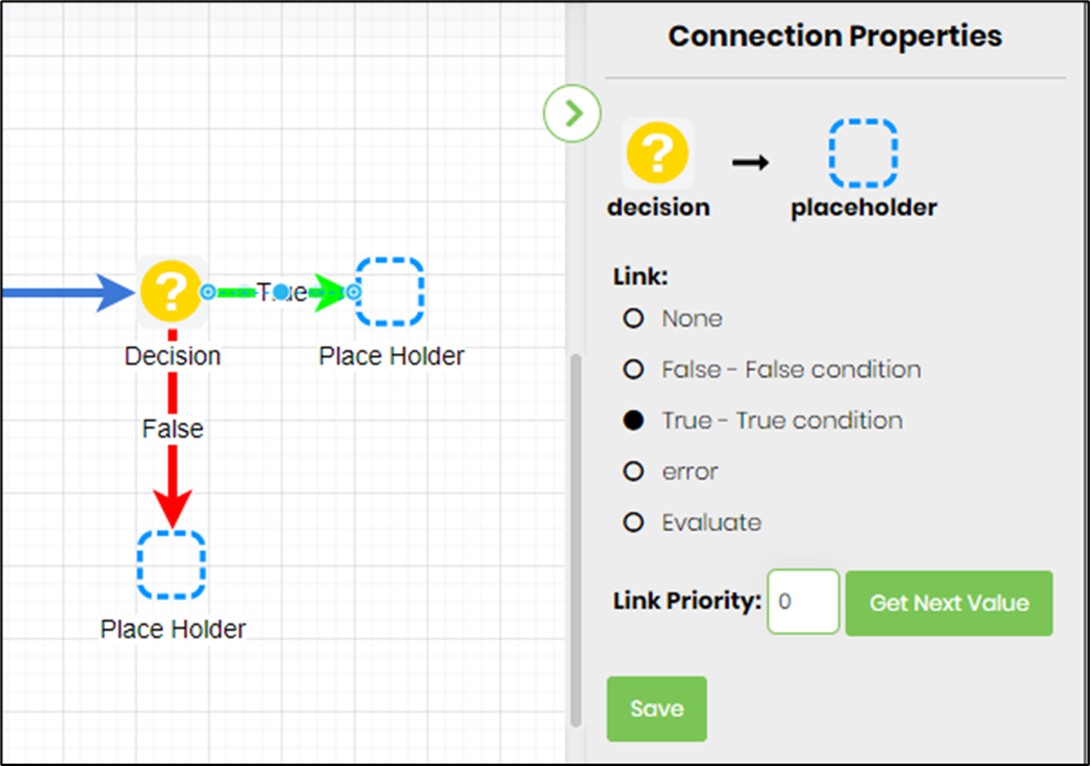
- Select the line between the steps to configure the “Connection Properties”. The default property values are “None, True, False, Error, and Evaluate”. Depending on the step’s purpose, additional configuration options are available.
- Define the variables or globals to store the values.
- Click the "updateVariables" step to configure its "Required" properties. Provide a name for the step. Navigate to the “Optional” tab. Click the icon, then enter values for multiple variables. A pop-up window appears for configuration. Click the Add Row button to insert an empty row. Enter the variable name and value. Click the Save button. You may add multiple variables using the Add Row button.

- Click the "updateGlobals" step to configure its "Required" properties. Provide a name for the step. Navigate to the “Optional” tab. Click the icon, then enter values for multiple globals. A pop-up window appears for configuration. Click the Add Row button to insert an empty row. Enter the global name and value. Click the Save button. You may add multiple globals using the Add Row button.

- Click the "subWorkflow" step to configure its "Required" properties. Provide a name for the step. Select the process definition as a separate function from the dropdown list. Then click the “Save” button.

- Double-click the subWorkflow step to view the process definition in a new tab. Click the "evalExpression" step to configure its "Required" properties. The expression evaluates the variables and global values passed to the subworkflow at runtime.

- Click the "subWorkflow" step to configure its "Optional" properties. Set “Yes” to pass variables to the child instance. Set “Yes” to pass variable values back to the parent instance. Set “Yes” to pass globals to the child instance. Set “Yes” to pass global values back to the parent instance. Click the button to map “parent-to-child” variable values to and fro. Click the button to map “parent-to-child” global values to and from. Set “Yes” for “Is Synchronized” if the parent should wait until the child instance is completed before executing. Set “No” if the parent instance does not wait for the child instance to complete; the parent instance continues execution. Select execution priority from the dropdown list - “low, medium, high.”

- Click the button to map the “parent-to-child” variable mapping. Click the “Add Row” icon to add new rows to map sub-process variables to parent process variables or values.

- Click the button to map “parent-to-child” global mapping. Click the “Add Row” icon to add new rows to map sub-process globals to parent process globals or values.

- Click the button to map the “child-to-parent” variable mapping. Click the “Add Row” icon to add new rows to map sub-process variables to parent process variables or values. Note: You can map sub-process globals to parent process variables when you need to swap values between globals and variables.

- Click the button to map “child-to-parent” global mapping. Click the “Add Row” icon to add new rows to map sub-process globals to parent process globals or values. Note: You can map sub-process variables to parent process globals when you need to swap values between globals and variables.

- Click the "decision" step to configure its "Required" properties. Provide a name for the step and the expression to evaluate.

- Click the Connection Properties link and configure the workflow's “True” and “False” process paths.
- Save the process definition, create a new instance, and execute it. Render the process instance. To render the child process instance, click the navigation icon (black) on the sub-workflow step.

- The child process instance is displayed in a new tab.

The child process instance stores the parent process instance's ID as a variable. The parent process instance ID is specified in the URL below.

The child process instance tags the parent process instance as a variable, shown in red below. Note: This behavior is cyclic in that, at any subworkflow level, the parent instance ID is tagged and available.

Tips:
- Select the correct Process Definition in Definition to use before executing the workflow.
- Use Parent to child variable mapping when the child needs specific values from the parent.
- Use Child to parent variable mapping when the parent needs values generated by the child.
- Use global mappings when the information being exchanged is represented by FlowWright globals.
- Enable the appropriate variable/global pass-through settings when the child workflow needs access to those values.
- Use meaningful names for parent and child variables to make mappings easier to understand and maintain.
- Review the Is synchronized setting when the parent workflow depends on the child workflow's execution.
- Use Select execution priority when the child instance needs a specific execution priority.
- Keep reusable business functionality in separate child Process Definitions when doing so makes the overall workflow easier to maintain.
- Test both parent-to-child and child-to-parent mappings before deploying the workflow.
- Use the True and False return paths to provide appropriate routing for success and failure in the parent workflow.
Notes:
- The Definition to use property is required.
- Variable and global pass-through settings are optional.
- Parent-to-child and child-to-parent mappings are supported for both variables and globals.
-
Is synchronized has a default value of
yesin the step definition. - Select execution priority is available for the child instance.
- The step provides True and False return paths.
- The step is categorized as an Engine process step.
-
The step uses the
FlowWright.Workflow.SubWorkflownamespace andFlowWright.Workflow.dll. - The XML definition specifies two input connections and two output connections.
- The XML definition does not describe the internal activities of the child Process Definition.
- The XML definition does not specify detailed runtime behavior for child-instance failures, timeouts, retries, or cancellation. These behaviors should be verified against the applicable FlowWright runtime documentation rather than inferred from the step definition.
Recommended Workflow Pattern:
A useful pattern for the Sub-Workflow step is to keep the parent workflow responsible for the overall business process while delegating a well-defined piece of functionality to a child Process Definition.

This pattern keeps the child functionality independently defined while providing controlled data exchange between the parent and child workflow instances.
Feature comparison:
| Feature | SubWorkflow | DynamicSubWorkflow |
|---|---|---|
| Category | Engine | Dynamic |
| Display name | Sub-Workflow | Dynamic Subworkflow |
| Primary purpose | Separates functionality into child instances and executes them separately from the parent | Starts a subworkflow from a step and dynamically builds the process |
| Definition selection | Required | Required |
| Pass variables to child | Yes | Yes |
| Pass variables back to parent | Yes | Yes |
| Pass globals to child | Yes | Yes |
| Pass globals back to parent | Yes | Yes |
| Parent → child variable mapping | Yes | Yes |
| Parent → child global mapping | Yes | Yes |
| Child → parent variable mapping | Yes | Yes |
| Child → parent global mapping | Yes | Yes |
| Synchronized execution | Yes; default is yes
|
Yes; default is yes
|
| Dynamic keys | No | Yes |
| Dynamic key variable | No | Yes |
| Execution priority | Yes | No |
| Returns | True / False | True / False |
| Input connections | 2 | 2 |
| Output connections | 2 | 2 |
Definition Sample:
You may download the sample definition from the link provided and later import it into your FlowWright Process Definition XML page.
The Sub-Workflow definition provides the child Process Definition selection, parent/child variable and global mappings, synchronization configuration, and execution priority.
Note: Verify and complete any missing configuration after importing the sample, including:
- Definition to use
- Variable pass-through settings
- Global pass-through settings
- Parent-to-child variable mappings
- Parent-to-child global mappings
- Synchronization setting
- Child execution priority
- Child-to-parent variable mappings
- Child-to-parent global mappings
- Workflow-specific connections
After verifying the configuration, save the Process Definition before execution.