Description:
The GetTaskFileAttachments step belongs to the Engine category in FlowWright. Its XML definition identifies the step as gettaskfileattachments, with the label "Gets task file attachments path" and the display name "GetTaskFileAttachments." This step retrieves information about files attached to the selected task step.
The step is defined as a Process step with two input connections and two output connections. It provides three configurable properties:
- Select Task Step – specifies the task step from which the file attachments should be retrieved.
- Result Type – specifies the result format.
- Variable/Global to hold the XML/Json of task attachments – specifies where the retrieved attachment information is stored.
The Select Task Step and Variable/Global properties are required. Result Type is optional.
The step uses the FlowWright selectTaskStep data type for task selection, the ResultFormat data type for result-format selection, and the standard string/text-box data type for the output Variable/Global.
Typical uses include:
- Retrieving files attached to a workflow task.
- Making task attachment information available to subsequent workflow steps.
- Processing attachments as part of document-related workflows.
- Determining whether a task contains associated files.
- Passing attachment information to downstream processing.
- Using XML or JSON attachment information in subsequent workflow operations.
- Building workflows that collect task-related documents and supporting files.
- Automating document-processing activities after a task is completed.
Inputs
- taskStepID – Select Task Step
- resultFormat – Result Type
- taskFileAttachments – Variable / Global to hold the task file attachments path in XML / JSON
Returns
- True – Indicates that the workflow continues through the True path.
- False – Indicates that the workflow continues through the False path.
Usage:
The GetTaskFileAttachments step is typically placed in a workflow to retrieve and make available the files associated with a task for subsequent workflow operations.
During execution:
- Configure the Select Task Step.
- Configure Result Type, when a specific result format is required.
- Configure Variable/Global to hold the XML/Json of task attachments.
- Execute the step.
- FlowWright retrieves the attachment information associated with the selected task step.
- The retrieved information is stored in the configured Variable/Global.
- Continue workflow processing through the True or False path according to the operation result.
The XML requires the task-step selection and output Variable/Global properties, while the result format is optional.
A typical workflow might look like:

Typical workflow suggestions:
- Retrieve documents submitted with a task - Use the step after a task where users are expected to provide supporting files.
- Document-processing workflow - Retrieve task attachments and pass the resulting information to subsequent document-processing operations.
- Approval workflows: Use the step after an approval or review task to collect information on the supporting documents for the task.
- Attachment validation: Retrieve the attachment information before subsequent workflow logic validates or processes the submitted files.
- Document archiving: Use the attachment information in a workflow to archive or transfer task-related documents.
- Automated document processing - Combine the step with downstream document-processing activities when task attachments need to be processed automatically.
- Task information collection - Use GetTaskFileAttachments together with GetTaskComments when a workflow needs to collect both the task's textual comments and its associated files.
Example:
Let’s build and execute the “getTaskFileAttachmentsDef” example.
- Create a new process definition named “getTaskFileAttachmentsDef” and open it in designer mode.
- Drag a “Task, getTaskFileAttachments” step to the canvas.
- Connect the dots between the “Start” and other steps, as shown above.
- Select the line between the steps to configure the “Connection Properties”. The default property values are “None, True, False, Error, and Evaluate”. Depending on the step’s purpose, additional values are available for configuration.
- Define a variable or a global variable to store the attachment file path information.
- Click the “Task” step to configure its “Required” properties. Enter a name and a task description. Click the Save button. Note: Click the "AI Predict" button to have the Copilot add new process steps that match your process description.

- Click the “Task” step to configure its “Optional” properties. Then route the task to yourself or another user. In this case, the system variable “variable.initiatorID” routes the task to the user who initiated the process instance.

- Click the “getTaskFileAttachments” step to configure its “Settings” properties. From the drop-down list, select the Task step. From the list, select the result type, either XML or JSON. Provide a variable or a global reference to store the file attachment path. These files are accessed from the file system on the application server or the DMS file storage folder, whose configuration is defined in the “Start” process step. Click the Save button. Note: Click the "AI Predict" button for the Copilot to add new process steps that match your process description.

- The “Logging” configuration is necessary for documentation and also measures workflow progress and percent complete. This is achieved by configuring the step state and percent fields individually, as shown below. Configure the “Logging” using the following properties.

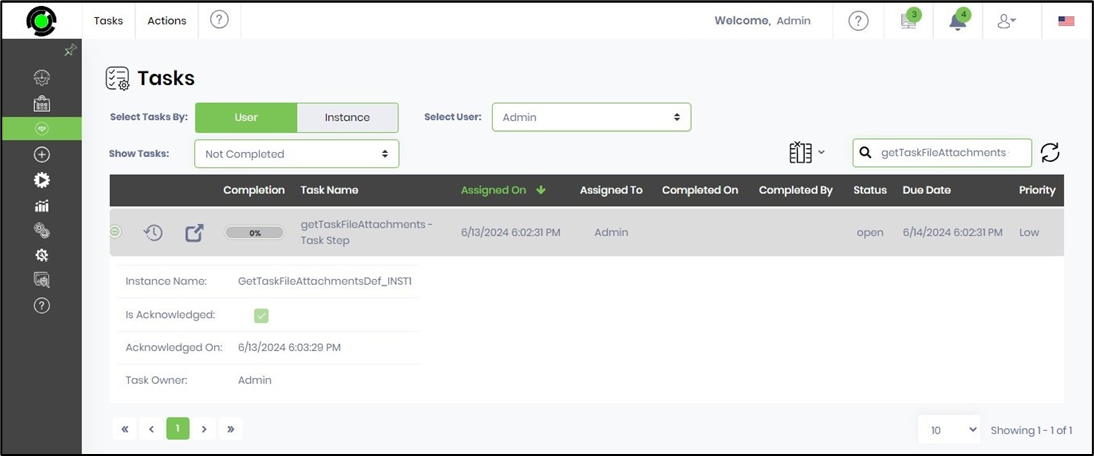
- Save the process definition, create a new instance, and then execute it. The task is assigned to the configured user. Navigate to the “Engage > Task” page to view the task or use the task notification. Click the task row to open it.
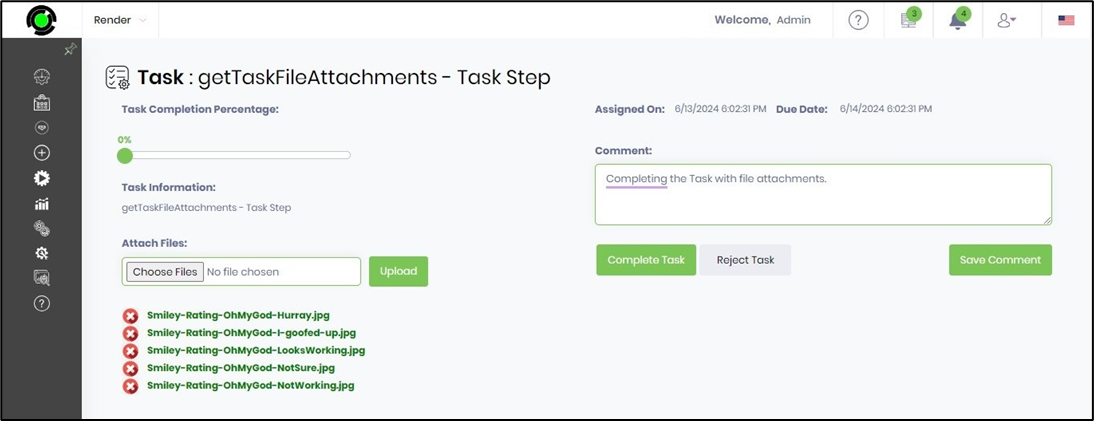
- The user can attach files to the task, select the return value, and provide comments. The task can be saved incrementally using the “percentage scroll bar” and the “Save Comment” button. Note: The files attached to the task are stored in the application server's file system or in the DMS file storage folder, whose configuration is defined in the “Start” process step. The user clicks the “Complete Task or Reject Task” button to complete this task, and the process instance advances to the next step in the workflow.
- The task is completed, and the process moves to the getTaskFileAttachments step in the workflow. The file attachment path is retrieved and stored in the provided variable or global reference. The process is complete.
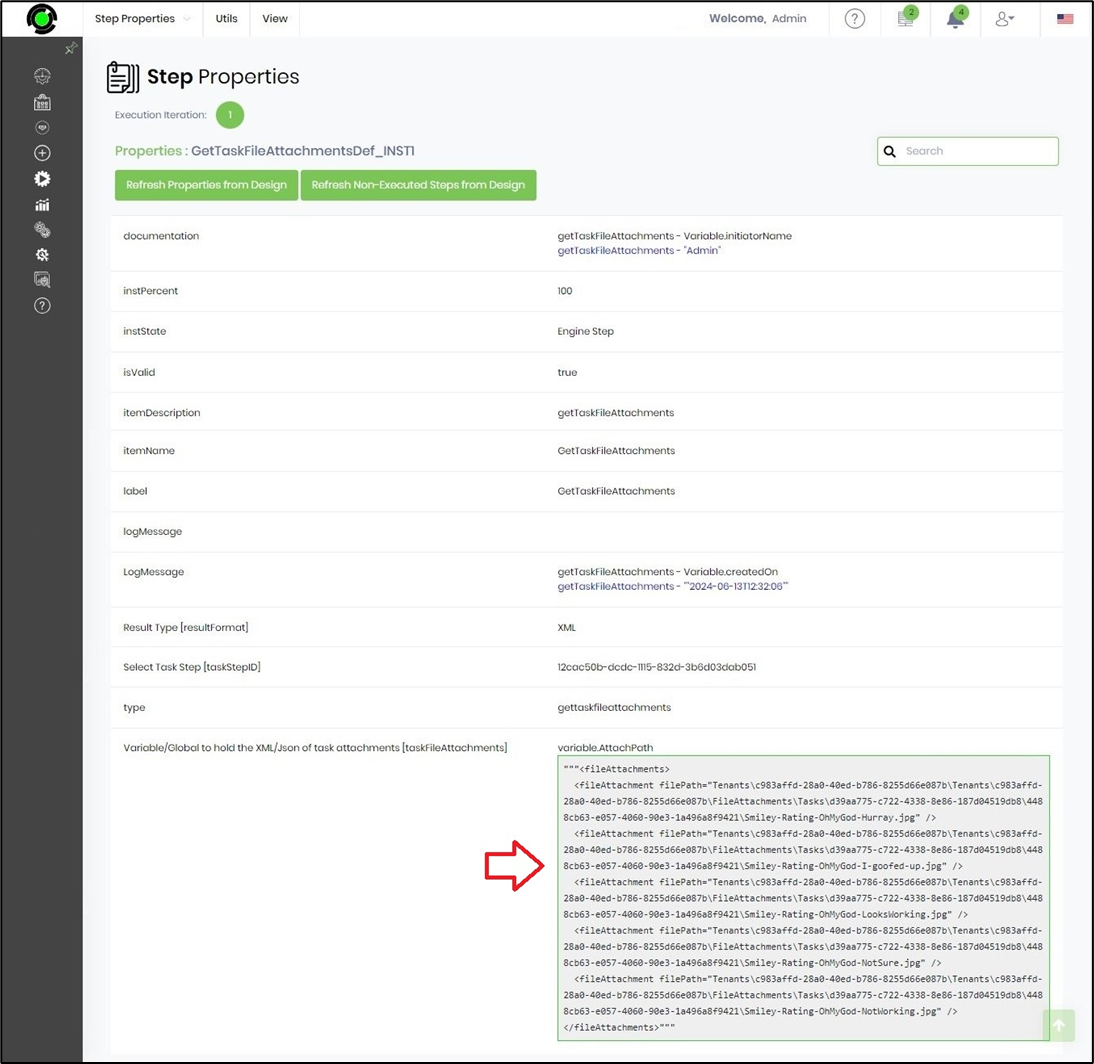
- Navigate to the "Process Instances" page. Select the process instance and render it to view. Click the “getTaskFileAttachments” step to view its properties. The step retrieves the file paths of the attachments added to the task. These file paths refer to the files stored in the application server's file system or in the DMS file storage folder, whose configuration is defined in the “Start” process step.
Tips:
- Always configure the Select Task Step property because it is required.
- Always configure Variable/Global to hold the XML/JSON of task attachments, as it is a required property.
- Configure Result Type when the downstream workflow requires a particular result format.
- Use a clearly named Variable/Global so that the purpose of the attachment information is easy to identify.
- Verify that the selected task step is the task whose attachments need to be retrieved.
- Place the step before the workflow operation that needs to consume the attachment information.
- Use the True path to continue the normal workflow when the retrieval operation succeeds.
- Use the False path for appropriate error or alternate processing.
- Test the workflow with tasks containing representative attachments before deploying it.
- Verify the returned XML/JSON before using specific fields in downstream workflow logic.
- Consider combining this step with document management or file processing steps when attachments need to be processed after retrieval.
- Use GetTaskComments separately when the workflow needs textual task comments rather than attachment information.
Notes:
- Category: Engine.
-
Internal name:
gettaskfileattachments. - Label: Gets task file attachments path.
- Display name: GetTaskFileAttachments.
-
Namespace:
FlowWright.Workflow.GetTaskFileAttachments. -
DLL:
FlowWright.Workflow.dll. - Step definition type: Process.
- Input connections: 2.
- Output connections: 2.
- Select Task Step: Required.
- Result Type: Optional.
- Variable/Global to hold the XML/Json of task attachments: Required.
-
Select Task Step data type:
selectTaskStep. -
Result Type data type:
ResultFormat. - Attachment result data type: String.
-
Attachment result data type implementation:
FlowWright.DataTypes.ClsTextBox. - Execution paths: True and False.
- Task attachment result: Stored in the configured Variable/Global.
- Connection-string, timeout, transaction, retry, or scheduling properties: Not exposed by the supplied XML.
- Detailed XML/JSON schema: Not exposed by the supplied XML.
- Attachment file content handling: Not exposed in the supplied XML.
Comparison with GetTaskComments
The GetTaskFileAttachments and GetTaskComments steps are both Engine Process steps that retrieve information associated with a FlowWright task. Their primary difference is the type of task information they retrieve.
GetTaskFileAttachments retrieves information about files attached to a task, while GetTaskComments retrieves task comments.
Practical distinction
Use GetTaskFileAttachments when the workflow needs to work with files associated with a task.
Use GetTaskComments when the workflow needs to work with task comments.
Definition Sample:
You may provide a sample process definition for the GetTaskFileAttachments step and import it by drag-and-drop into the FlowWright Process Definition (XML file) page.
After importing the sample, verify and complete any missing configuration, including:
- Select Task Step
- Result Type, if required
- Variable/Global to hold the XML/Json of task attachments
- Connections to the surrounding workflow steps
- True and False execution paths
- Any task-specific configuration required by the workflow
After verifying the configuration, save the Process Definition before execution.
Click here to download the sample file.