clsDateTimetoUTC Step
Description:
The Convert Date Time with Time Zone to UTC step enables a FlowWright workflow to convert a date and time from a specified time zone into Coordinated Universal Time (UTC).
Organizations operating across multiple regions often receive date and time values from users, web forms, APIs, or external applications in local time zones. Storing these values directly can lead to inconsistencies when comparing events, generating reports, or integrating with other systems. By converting local times to UTC, workflows establish a standardized time reference that is independent of regional daylight saving time rules and local time zone differences.
The step accepts a date and time value, allows the workflow designer to specify its originating time zone, and returns the converted UTC value through a workflow variable or global variable. It also supports updating multiple date/time values during a single workflow execution using configurable mappings.
Typical uses include:
- Standardizing timestamps before database storage
- Converting user-entered appointment times
- Preparing dates for REST API integrations
- Recording audit timestamps
- Synchronizing events across multiple geographic regions
- Preparing data for reporting systems
- Normalizing scheduling information
- Converting imported dates from external applications
This step enables organizations to maintain consistent and reliable date/time information throughout enterprise workflows regardless of user location.
Inputs
- timeZone - Specifies the local time zone to convert the date and time to UTC. This property is required.
- Select Time Zone - Specifies the time zone associated with the supplied date and time. This property is optional.
- Update Multiple DateTimes - Optionally specifies multiple date/time values that should be converted during a single execution using configurable mappings.
- Select Variable/Global to Store UTC Date Time - Specifies the workflow variable or global variable that will receive the converted UTC date and time. This property is required.
Returns
- True – The supplied date and time were successfully converted to UTC and stored in the configured workflow variable or global variable. Workflow execution continues through the success path.
- False – The conversion could not be completed because of an invalid date/time value, unsupported time zone, incorrect mapping configuration, or another execution error. Workflow execution follows the alternate path.
Usage:
The Convert Date Time with Time Zone to UTC step is typically used before storing date/time values in a database, transmitting them to external systems, or recording workflow audit information.
During execution:
- Read the supplied local date and time.
- Determine the configured source time zone.
- Convert the local date and time into Coordinated Universal Time (UTC).
- If configured, convert additional date/time values using the multiple date/time mappings.
- Store the resulting UTC value in the configured workflow variable or global variable.
- Continue workflow execution through either the True or False return path.
A typical workflow might look like this:

Typical workflow scenarios include:
- Recording customer appointments
- Normalizing workflow timestamps
- Converting imported scheduling data
- Preparing timestamps for cloud integrations
- Synchronizing multi-region business events
- Recording audit trail timestamps
- Standardizing reporting dates
- Preparing UTC values for API communication
Example:
Let’s build and execute the “clsDateTimeToUTCDef” example.
- Create a new process definition named “clsDateTimeToUTCDef” and open it in designer mode.
- Drag the “clsDateTimeToUTCDef” step to the canvas
- Connect the dots between the “Start” and “clsDateTimeToUTCDef” steps, as shown above.
- Select the line between the steps to configure the “Connection Properties”. The default property values are “None, True, False, Error, and Evaluate”. Depending on the step’s purpose, additional values are available for configuration.
- Define a variable or a global to store the result.
- Click the “UpdateVariables” step to configure its “Required” properties. Enter a step name, then click the Save button. Note: Click the "AI Predict" button to have the Copilot add new process steps that match your process description.

- Click the “UpdateVariables” step to configure its “Optional” properties. Provide a variable or global reference and its value to update a single variable. Click the button to update multiple variables. A pop-up window appears for configuration. Click the Add Row (+) button to insert an empty row. Enter the variable name and its date-time value. Click the Save button. You may add multiple variables using the Add Row button.

- Click the “clsDateTimeToUTC” step to configure its “Required” properties as shown below. Enter the datetime value manually or reference a variable or global that contains a datetime value. To store the converted UTC datetime, provide a variable or global reference. Click the Save button. Note: Click the "AI Predict" button for the Copilot to add new process steps that match your process description.

- Click the “clsDateTimeToUTC” step to configure its “Optional” properties. Select the time zone from the drop-down list. Choose the preferred time zone as the conversion reference, or leave it unselected since it's optional. Click the button to update multiple datetime values. The Update Multiple DateTimes pop-up window appears as shown below. Click the Add Row (+) button to insert an empty row. Provide the variable or global reference for the datetime. Provide the variable or global reference that holds the UTC value. Click the Save button. You may add multiple datetime variables using the Add Row button.

- The “Logging” configuration is necessary for documentation and also measures workflow progress and percent complete. This is achieved by configuring the step state and percent fields individually, as shown below. Configure the “Logging” using the following properties.

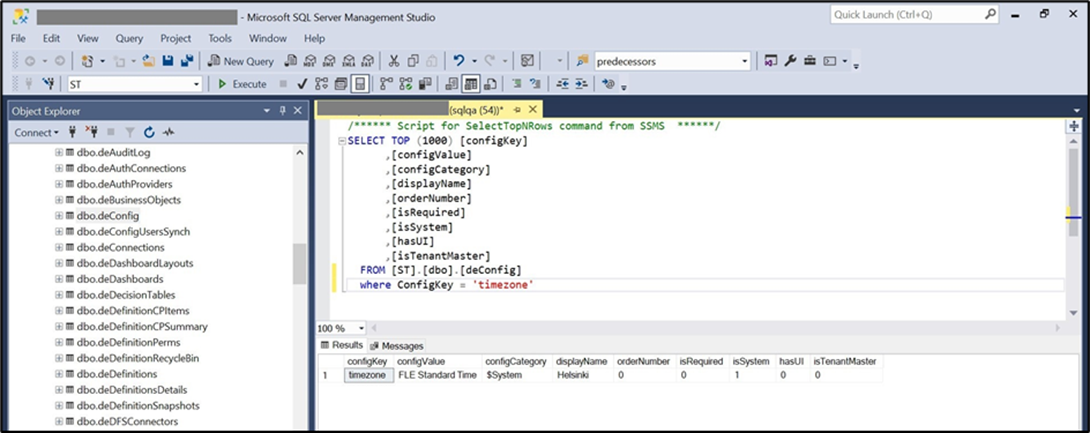
- When unselected, the time zone value references the FW database's deConfig table (shown below), and it can be configured with any global time zone name. This deConfig-ConfigKey was defined manually in earlier FlowWright versions. In this example, the ConfigKey refers to the Finnish time zone. The default time zone can be configured on the Status > Information > Culture page.
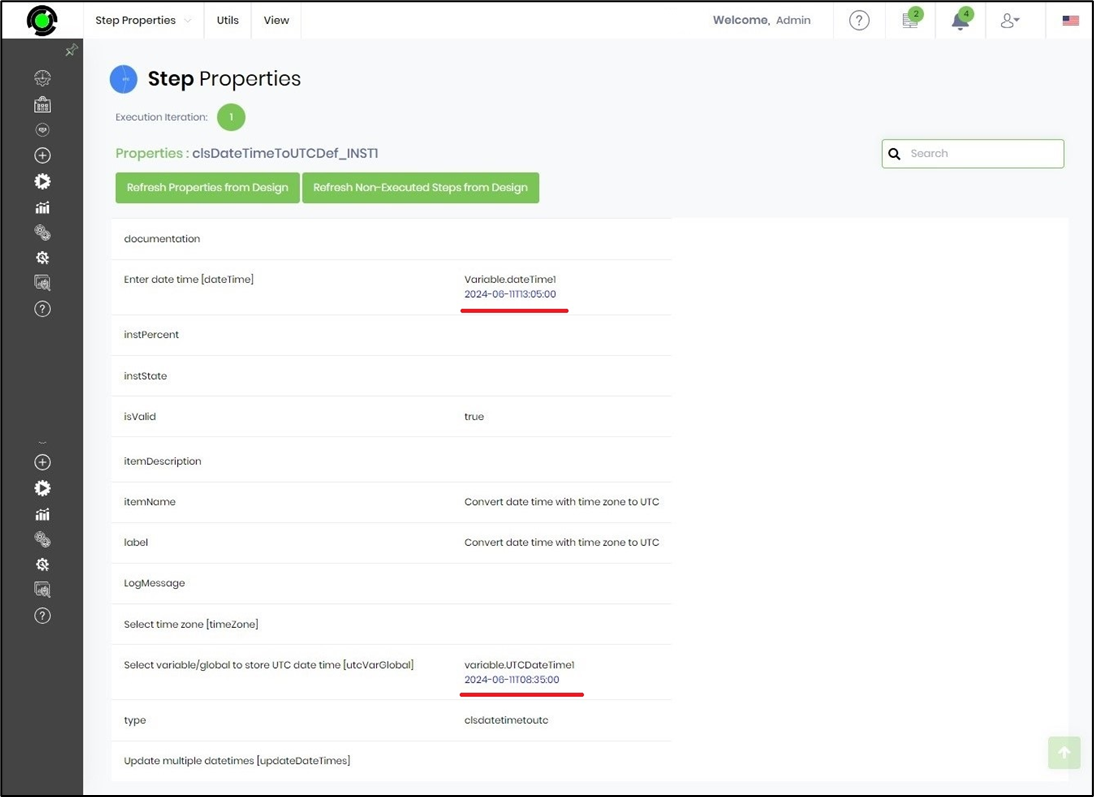
- Save the process definition, create a new instance, and execute it. Check the step properties by rendering the process instance. The “clsDateTimeToUTC” step should convert the provided date and time (with time zone) to UTC, as shown below.
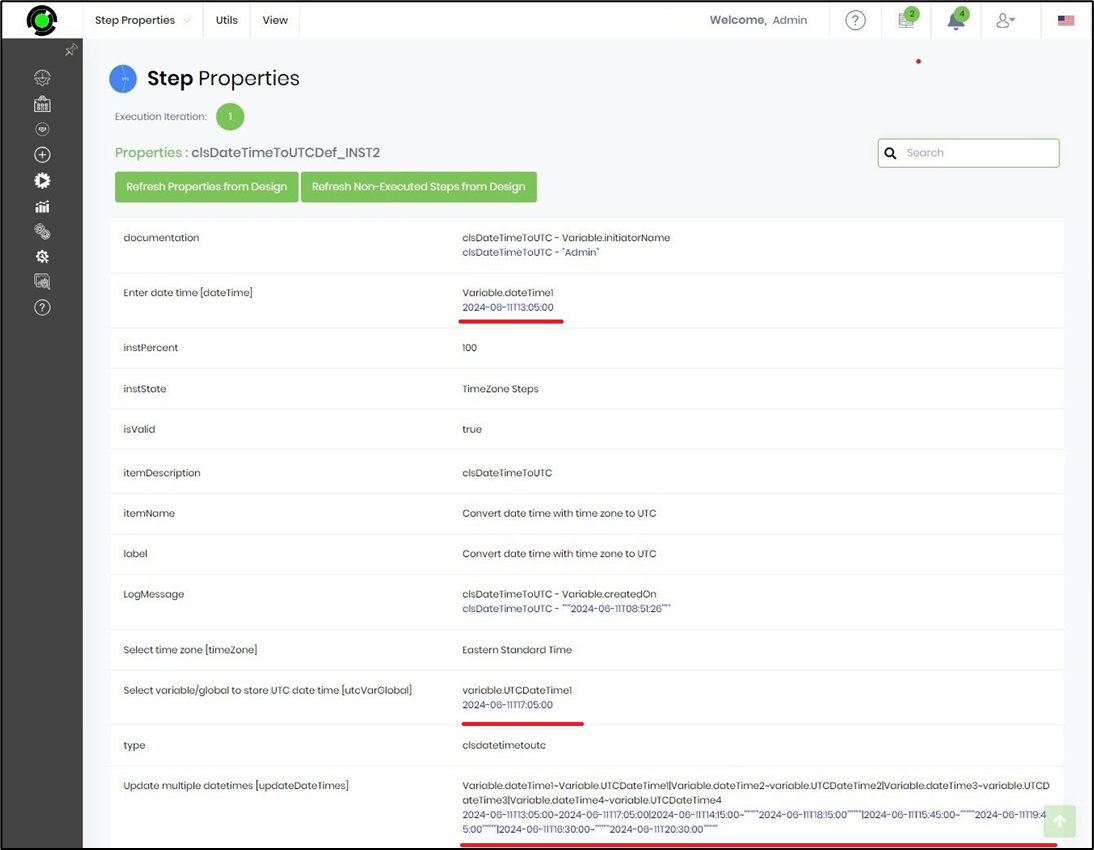
- The clsDateTimeToUTC step should convert multiple date times (with time zones) to UTC, as shown below.
Tips:
- Store business dates in UTC whenever workflows span multiple geographic regions.
- Specify the correct source time zone to ensure accurate conversions.
- Use Update Multiple DateTimes when several date values require conversion during the same workflow execution.
- Store the converted UTC value in a global variable when multiple workflow branches need to access the same timestamp.
- Route the False execution path to logging and notification activities for easier troubleshooting.
- Combine this step with Convert UTC Date Times to Selected Time Zone, REST API steps, database operations, reporting workflows, or scheduling activities to provide consistent time handling across enterprise workflows.
Notes:
- The Enter Date Time property is required.
- The Select Variable/Global to Store UTC Date Time property is required.
- The Select Time Zone property is optional.
- The Update Multiple DateTimes property is optional and supports converting multiple values during a single workflow execution.
- The converted UTC value is stored in the configured workflow variable or global variable.
- Both the True and False return paths should be implemented for complete workflow handling.
- UTC values provide a consistent time reference for storage, integrations, and reporting across different regions.
Convert Date Time with Time Zone to UTC vs. Convert UTC Date Times to Selected Time Zone:
Although both workflow steps perform time zone conversions, they operate in opposite directions and are designed for different business scenarios.
| Convert Date Time with Time Zone to UTC | Convert UTC Date Times to Selected Time Zone |
|---|---|
| Converts a local date and time into Coordinated Universal Time (UTC). | Converts one or more UTC date/time values into a selected local time zone. |
| Intended for standardizing user-entered or locally generated date/time values before storage or integration. | Intended for displaying stored UTC values in a user's local time zone. |
| Requires an Enter Date Time value. | Uses mappings between UTC date/time values and workflow variables/globals. |
| Supports an optional source Time Zone selection. | Uses a destination Time Zone for conversion. |
| Can convert a single value or multiple values using Update Multiple DateTimes. | Converts multiple UTC values through its mapping configuration. |
| Stores the resulting UTC value in a workflow variable or global variable. | Stores converted local date/time values in the mapped workflow variables or globals. |
As a general guideline:
- Use Convert Date Time with Time Zone to UTC when workflows receive local date/time values that must be standardized before storage, auditing, or system integration.
- Use Convert UTC Date Times to Selected Time Zone when workflows retrieve UTC timestamps and need to present them in a user's local time zone for forms, reports, emails, dashboards, or notifications.
Definition Sample:
You may download the sample workflow definition from the link provided and import it into your FlowWright environment.
Note: Verify and complete any missing configuration after importing the sample, including:
- Local date and time value
- Source time zone
- Multiple date/time mappings (if required)
- Variable/Global to store the UTC value
- Success and failure workflow branches
After verifying the configuration, save and publish the workflow before execution.
Click here to download the sample file.