CreateTenantFromTenant Step
Description:
The Duplicate Tenant workflow step belongs to the Tenants category in FlowWright. Its internal name is clscreatetenantfromtenant, its label is Create new tenant from existing tenant, and its display name is Duplicate Tenant. The step uses the FlowWright.Workflow.ClsCreateTenantFromTenant namespace and FlowWright.Workflow.dll. It is defined as a Process step with two input connections and two output connections.
The step creates a new tenant using an existing tenant as the source. It requires a Tenant Manager connection, a name for the new tenant, a database name for the new tenant, the source tenant to copy from, and a Variable/Global to store the resulting tenant ID.
The step supports:
- Tenant creation from an existing tenant
- Selection of a Tenant Manager connection
- Specification of the new tenant name
- Specification of the new tenant database name
- Selection of an existing source tenant
- Storage of the newly created tenant ID
- True/False workflow branching
This step can be used for:
- New customer tenant provisioning
- Creating tenants from a standard template tenant
- Environment or customer onboarding
- Rapid tenant setup
- Tenant cloning
- Automated multi-tenant provisioning
- Creating tenant environments as part of a larger onboarding workflow
- Continuing tenant-specific configuration after creation
Inputs
- Select Tenant manager connection – Selects the Tenant Manager connection used for the tenant operation.
- Tenant name – Specifies the name of the new tenant.
- Tenant database name – Specifies the name of the new tenant's database.
- Select source Tenant – Selects the existing tenant to use as the source for duplication.
- Variable/Global to hold the tenant ID -- Stores the ID of the newly created tenant.
Returns
- True – Tenant duplication operation completed successfully.
- False - Tenant duplication operation did not complete successfully.
Usage:
The Duplicate Tenant step is typically placed in a workflow that provisions a new tenant from an existing one.
A common workflow pattern is:
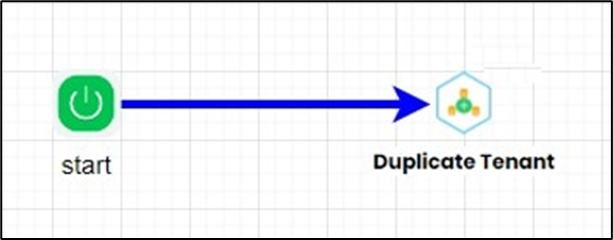
The newly generated tenant ID can be stored in a Variable/Global and passed to subsequent tenant-specific operations.
This makes the step particularly useful for tenant provisioning, not just naming or information generation.
Example:
Let’s build and execute the “CreateNewTenantFromExistingTenantDef” example.
- Create a new definition named “CreateNewTenantFromExistingTenantDef” and open it in designer mode.
- Drag a "clsCreateTenantFromTenant" step to the canvas.
- Connect the dots between the "Start" and "clsCreateTenantFromTenant" steps, as shown above.
- Define a variable or a global to store the result.
- Click the "clsCreateTenantFromTenant" step to configure its "Required" properties. Provide a name for the step. Select the tenant manager connection string from the drop-down list. Enter the target tenant's name and database information. Select the source tenant from the drop-down list. Provide a variable or global to store the duplicate tenant's GUID. Click the Save button. Note: Click the "AI Predict" button for Copilot to add new process steps that match your process description.

- The “Logging” configuration is necessary for documentation and also measures workflow progress and percent complete. Configure the step state and percent fields individually, as shown below. Configure the “Logging” using the following properties.

- Save the Process Definition, create a new Process Instance, and execute it. When the workflow reaches the Duplicate Tenant step, FlowWright uses the selected Tenant Manager connection and source tenant, along with the configured new tenant name and database name, to perform the tenant duplication operation. If successful, the new tenant ID is stored in the configured Variable/Global, and the workflow follows the True path. If the operation fails, the workflow follows the False path.
Tips:
- Configure the Tenant Manager connection before using the step.
- Verify that the selected source tenant exists and is the intended template.
- Use a clear and unique Tenant name.
- Use a database name that follows the naming conventions of the target environment.
- Ensure the destination database name does not conflict with an existing tenant database.
- Store the resulting tenant ID in a meaningful Variable/Global such as
NewTenantID. - Consider generating the tenant name before invoking this step when tenant names are dynamic.
- Consider generating the database name separately when the database name must follow an organizational convention.
- Use the True and False paths to distinguish successful tenant provisioning from failure handling.
- Follow tenant creation with the additional configuration required by your customer onboarding process.
- Test the duplication process with a representative source tenant before using it in production.
- Be deliberate about the source tenant's contents and configuration, as the purpose of this step is to create a new tenant from an existing one.
- Document environment-specific tenant and database naming rules so automated provisioning remains predictable.
Feature Comparison:
Duplicate Tenant vs. Generate Tenant Name:
The two steps are closely related because both are Tenant category Process steps and can participate in tenant-provisioning workflows, but they perform fundamentally different operations.
The Generate Tenant Name step has three properties:
- Tenant Manager connection — required
- Tenant name — optional
- Variable/Global to hold the Tenant name — required
and provides True/False paths.
The Duplicate Tenant step has five required properties:
- Tenant Manager connection
- Tenant name
- Tenant database name
- Source tenant
- Variable/Global to hold the tenant ID
| Feature | Duplicate Tenant | Generate Tenant Name |
|---|---|---|
| Internal name | clscreatetenantfromtenant |
clsgeneratehostname |
| Display name | Duplicate Tenant | Generate tenant name |
| Category | Tenants | Tenants |
| Step type | Process | Process |
| Inputs | 5 properties | 3 properties |
| Tenant Manager connection | Required | Required |
| Tenant name input | Required | Optional |
| Database name | Required | Not exposed |
| Source tenant | Required | Not exposed |
| Output | New tenant ID | Generated tenant name |
| Output Variable/Global | Required | Required |
| True/False paths | Yes | Yes |
| Creates a tenant | Yes | No |
| Generates tenant name | No | Yes |
When to Use Duplicate Tenant.
Use Duplicate Tenant when you need to create a new tenant from an existing one. This is the appropriate step for provisioning a tenant.
When to Use Generate Tenant Name.
Use Generate Tenant Name when the workflow needs to generate or obtain a tenant name but is not yet performing the tenant-creation operation. The generated tenant name can then become an input to the Duplicate Tenant operation.
Definition Sample:
You may download the sample definition(s) from the link provided and later import them into the FlowWright Process Definition (XML file) page.
Note: Verify and complete any missing configuration after importing the sample, including:
- Tenant Manager connection
- New tenant name
- Tenant database name
- Source tenant
- Tenant ID Variable/Global
- Environment-specific tenant configuration
- Workflow connections
After verifying the configuration, save the Process Definition before execution.
This follows the structure of the existing Classify AI documentation, which asks users to verify required configuration and environment-specific settings after importing a sample and to save the Process Definition before execution.
Click here to download the sample file.