This function lets you configure dashboards for more effectiveness.
Navigate to the Administration > Dashboard page. Select a dashboard from the list, then click the Utils menu option.
Mark the dashboard as the user's default dashboard.
Select the Mark as Default menu option. This option lets you set the selected dashboard as the default for the current user and all FlowWright users. When a user logs in, the system displays the default dashboard.

A confirmation message appears in the top-right corner.

When the user logs in, the default dashboard appears.
To undo the default dashboard configuration, select the dashboard, then click the Utils > Show/Hide menu option.

The default dashboard configuration resets, and a confirmation message appears in the top-right corner.

Selecting the Dashboard menu option in the left pane now displays this message. The default dashboard must be reconfigured.

To reconfigure the default dashboard, select the dashboard from the table, then click the Utils > Set System Dashboard For > Admin User menu option.

The selected dashboard is now the default, and a confirmation message appears in the top-right corner.

Selecting the Dashboard menu option in the left pane now displays the new default dashboard.

Show/Hide the dashboard.
This toggle lets you configure or remove the selected dashboard as a menu item in the left pane for quick access.
Click the Utils > Show/Hide menu option to add the dashboard as a menu item.

A status confirmation message appears in the top-right corner.

Date Filter On/Off.
This toggle lets you configure or undo the dashboard's sorting with the date filter.
Click the Utils > Date Filter On/Off option to enable the date filter on the dashboard.

The date filter is enabled on the dashboard, and a confirmation message appears in the top-right corner.

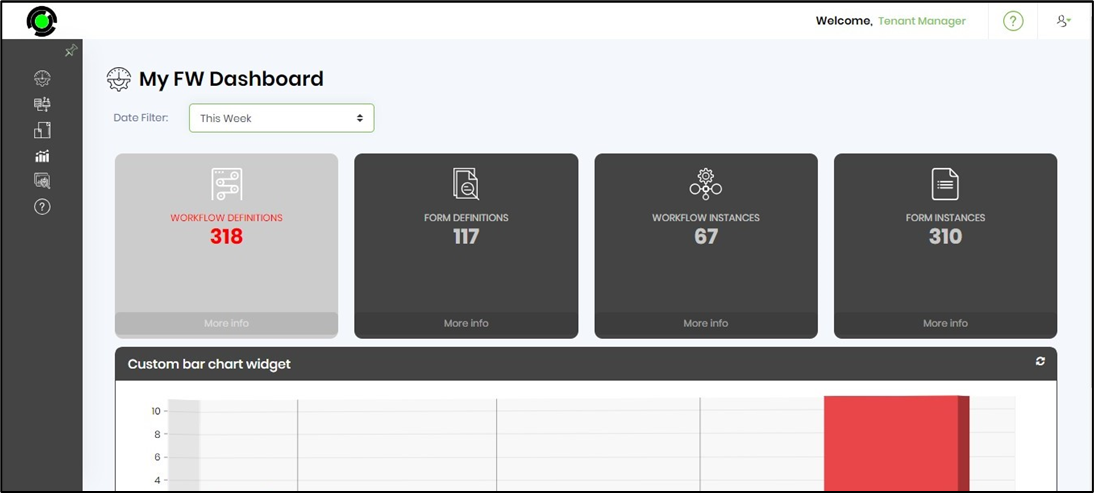
To view the dashboard with a date filter, select the dashboard, then click the Preview option under the Utils menu.

The dashboard is rendered on a new page with a date filter, as shown below. Note: The date filter does not affect the number of widgets. The date filter enhances the custom widgets' functionality.

Click the date filter drop-down list to select a different timeline.

The dashboard is refreshed to reflect the selected timeline, as shown below. You will observe that the bar chart widget displays different data points based on the selected timeline.

Set System Dashboard for Admin User.
This function lets you set a dashboard as the “default” for ADMIN users.
Select the dashboard from the list, then click the Utils > Set System Dashboard for > Admin User menu option. The selected dashboard will be displayed when the ADMIN user logs in.
