Description:
The Update Variables workflow step updates the value of one or more variables within a FlowWright workflow.
The step provides two ways to specify the variables to update:
- Update multiple variables — maps multiple variables through the variable mapping interface.
- Name of the variable and Value of the variable — specify an individual variable and its value.
The step also provides a Has Expression option, allowing the configured value to be treated according to expression behavior.
The step supports:
- Updating multiple workflow variables
- Updating an individual workflow variable
- Assigning values to variables
- Using expressions when setting variable values
- True and False return paths
Inputs
- Update multiple variables – Optional mapping used to update multiple variables.
- Name of the variable – Optional name of the individual variable to update.
- Value of the variable – Optional value to assign to the specified variable.
- Has Expression – Optional Yes/No setting that determines whether the configured value has expression behavior. The XML defines its default value as Yes.
Returns
- True – True return path from the Update Variables step.
- False – False return path from the Update Variables step.
Usage:
The Update Variables step is typically used when a workflow needs to change values that are used by subsequent workflow activities.
A workflow can use the step to:
- Set a workflow variable after a business activity.
- Update multiple variables at one point in a process.
- Assign a calculated or dynamically determined value to a variable.
- Change workflow state based on an earlier activity.
- Prepare variables for subsequent decision or processing steps.
- Update values based on workflow conditions.
- Use expressions when determining variable values.
For example, a workflow can retrieve customer information, perform a calculation, and then use Update Variables to store the result for subsequent activities.

When the workflow reaches the Update Variables step, the configured workflow variable or variables are updated with the specified values. Subsequent workflow activities can then use the updated values.
Typical Workflow Suggestions:
Set Processing Status
Use Update Variables to record the current processing state of a workflow.
Example:
Start → Process Request → Update Variables → Continue
The workflow can update a status variable after completing an activity.
Store a Calculated Value
Use the step to store a value calculated during workflow execution.
Example:
Retrieve Data → Calculate Result → Update Variables → Generate Report
The calculated result can be stored for use by later workflow steps.
Update Multiple Values
Use Update multiple variables when several workflow values need to be changed at the same point in the process.
Example:
Process Request → Update Variables → Continue
The step can update several related workflow variables together. The XML specifically provides an enterVariables mapping for this purpose.
Prepare Values for a Decision
Use Update Variables before a decision or conditional workflow activity.
Example:
Retrieve Customer Data → Update Variables → Evaluate Customer Status
The variables can contain values required by subsequent workflow logic.
Update Workflow State
Use the step to change variables that represent workflow state.
Example:
Complete Review → Update Variables → Continue Processing
This can help downstream activities determine what has already occurred in the process.
Expression-Based Variable Assignment
Use Has Expression when the value assigned to the variable needs expression handling.
Example:
Retrieve Data → Update Variables → Evaluate Result
The XML provides the Has Expression option specifically as a Yes/No property and sets its default value to Yes.
Prepare Notification Data
Use Update Variables to prepare values that will be consumed by a subsequent notification step.
Example:
Process Request → Update Variables → Send Notification
Variables can be updated before the notification activity executes.
Example:
Let’s build and execute the “updateVariableDef” example.
- Create a new process definition named “updateVariableDef” and open it in designer mode.
- Drag the “task, updateVariables” steps to the canvas.
- Connect the dots between the “Start” step and other steps, as shown above.
- Select the line between the steps to configure the “Connection Properties”. The default property values are “None, Closed, Completed, Rejected, Timeout, Error, and Evaluate”. Depending on the step’s purpose, additional values are available for configuration.
- Define a variable or a global variable to store the result.
- Click the “Task” step to configure its “Required” properties. Provide a name for the step, then click the Save button. Note: Click the "AI Predict" button to have the Copilot add new process steps that match your process description.

- Click the “Task” step to configure its “Optional” properties. Click the button to set the users who will route the form, as shown below.

- Click the "updateVariable" step to configure its "Required" properties. Provide a name for the step, then click the Save button. Note: Click the "AI Predict" button to have the Copilot add new process steps that match your process description.

- Click the "updateVariable" step to configure its "Optional" properties. Click the button to configure multiple variables and values. A pop-up window appears for configuration. Click the Add Row (+) button to insert an empty row. Enter the variable name and value. You can add multiple variables using the Add Row button. Click the duplicate icon to quickly repeat the last row and overwrite it with a new name and value. Click the Save button. Set “Yes” if the value to be computed is an expression. Note: Use either single variable references or multiple ones, not both.

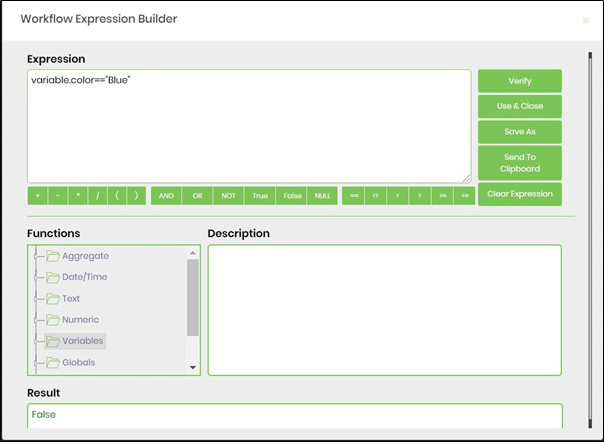
- Expression Builder Utility. Click inside the text box. Use the keyboard shortcut “ALT + E” to invoke the expression builder. This utility enables the building and validation of expressions, as shown in the image below. Copy the expression to the clipboard, then paste it into the input field.
- Example for conditions to evaluate:
(1) Variable.number + 10 >100
(2) Global.testNumber + 100 / Variable.colNum >=1000
(3) Variable.data + "test" == “Apptest”
(4) Global.hasData == 1
- Save the process definition, create a process instance, and execute it. This step should update the variables with values. Render the process instance. Select the "Items"> "Variables"> "Latest" menu option to view the variable values.

Tips:
- Use Update multiple variables when several variables need to be updated together.
- Use Name of the variable and Value of the variable when configuring an individual variable update.
- Make sure the variable name corresponds to the variable intended for change.
- Verify the value being assigned before using the updated variable in subsequent workflow activities.
- Use meaningful variable names to make workflows easier to understand and maintain.
- Configure Has Expression deliberately when the value uses expression behavior.
- Consider grouping related variable updates into a single Update Variables step where appropriate.
- Use meaningful step names such as “Update Processing Status”, “Set Customer Values”, or “Prepare Notification Variables”.
- Test variable updates together with the downstream steps that consume those values.
Notes:
The UpdateVariable step is defined in the Engine category with the internal name updatevariable and display name Update Variables.
The workflow step is implemented by the FlowWright.Workflow.UpdateVariableStep namespace in FlowWright.Workflow.dll and is defined as a Process step. It supports 2 incoming connections and 2 outgoing connections.
The step defines four configurable properties:
- Update multiple variables
- Name of the variable
- Value of the variable
- Has Expression
All four properties are marked as optional in the XML.
The Update multiple variables property uses the enterVariables data type, which is described as “Map variables.”
The Name of the variable and Value of the variable properties use the string data type, implemented through FlowWright.DataTypes.ClsTextBox.
The Has Expression property uses selectYesNo, described as “Get Yes, No as list,” and has a default value of yes.
The XML defines both True and False return paths.
Feature comparison.
| Feature | UpdateVariable | UpdateGlobals | UpdateDBFieldValue |
|---|---|---|---|
| Category | Engine | Engine | Database |
| Display name | Update Variables | Update Globals | Update record value |
| Primary purpose | Update one or more workflow variables | Update one or more global values | Update a database field in a record |
| Scope of data | Process/workflow variables | Global values | External/database record |
| Multiple values in one step | Yes | Yes | No — one field per step |
| Variable/global selection | Update multiple variables |
Update multiple globals |
Not applicable |
| Single value name/value inputs | Yes | No separate name/value properties in XML | Yes — field name/value |
| Expression support | Yes | Yes | No explicit expression property |
| Database connection required | No | No | Yes |
| Table required | No | No | Yes |
| Field required | No | No | Yes |
| Record selection | Not applicable | Not applicable | Yes, using WHERE field/value |
| Different database support | Not applicable | Not applicable | Yes, via connection/database properties |
| Return paths | True / False | True / False | True / False |
| Incoming connections | 2 | 2 | 2 |
| Outgoing connections | 2 | 2 | 2 |
Definition Sample:
You may download a sample definition when provided and import it into your FlowWright Process Definition.
Note: Verify and complete any missing configuration after importing a sample, including:
- Variable mappings
- Variable name
- Variable value
- Expression setting
- Outgoing workflow connections
- Environment-specific workflow settings
After verifying the configuration, save the Process Definition before execution.